# Payroll

# Checklist

### Payroll Check List

1. [New Starts](https://manual.maticmedia.co.uk/books/payroll/page/adding-a-new-employee "Adding a New Employee")
2. [Leavers](https://manual.maticmedia.co.uk/books/payroll/page/making-an-employee-a-leaver "Making an Employee a Leaver")
3. [National Minimum Wage Changes / Living Wage Changes](https://manual.maticmedia.co.uk/books/payroll/page/living-wage-national-minimum-wage-changes-aprilmay "Living Wage / National Minimum Wage Changes (April/May)")
4. [Wage Changes](https://manual.maticmedia.co.uk/books/payroll/page/changing-an-employee-wage-hourly-rate "Changing an Employee Wage / Hourly Rate")
5. [Holidays / Sick Days](https://manual.maticmedia.co.uk/books/payroll/page/adding-holidays "Adding Holidays")
6. [Create Pay Run](https://manual.maticmedia.co.uk/books/payroll/page/creating-a-pay-run "Creating a Pay Run")
7. Hours Change
8. Overtime
9. Bonuses
10. Get Management Sign Off
11. Post and Send Payslips
12. Make Any Amendments
13. Upload to Bank
14. Add NI and Tax Payment to Bank
15. \[OPTIONAL\] Send P45's
16. Send Nest File

# Employees


# Adding a New Employee

## Required Information

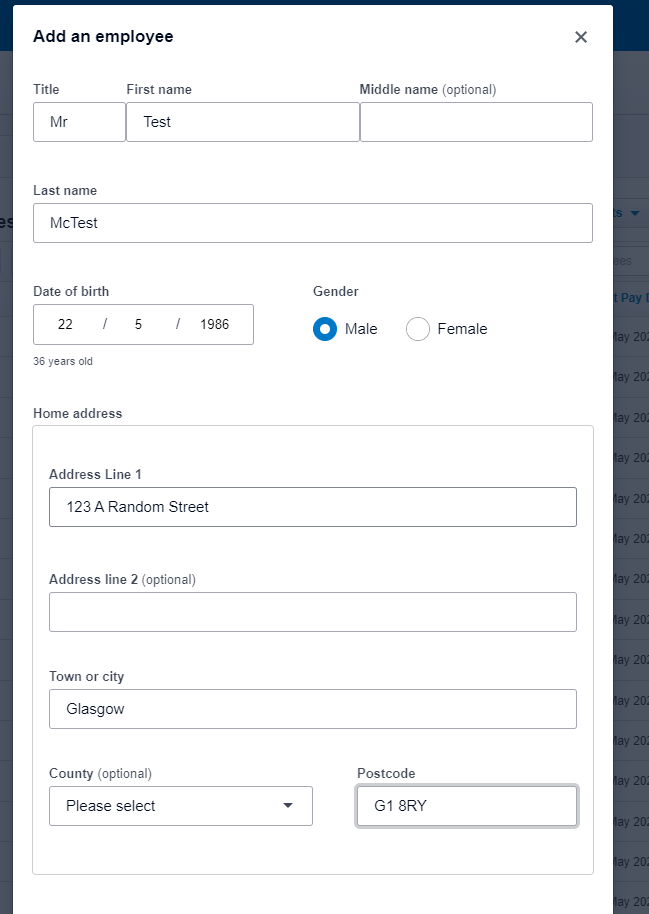
To add a new employee you need the following employee's information first. **This information can either be found in the employee's new start form or in their contract.**

<table border="1" id="bkmrk-field-example-title-" style="border-collapse: collapse; width: 100%; height: 748.844px;"><tbody><tr style="height: 29.7969px;"><td style="width: 49.9383%; height: 29.7969px;">**Field**</td><td style="width: 49.9383%; height: 29.7969px;">**Example**</td></tr><tr style="height: 29.7969px;"><td style="width: 49.9383%; height: 29.7969px;">**Title**</td><td style="width: 49.9383%; height: 29.7969px;">Mr</td></tr><tr style="height: 29.7969px;"><td style="width: 49.9383%; height: 29.7969px;">**First Name**</td><td style="width: 49.9383%; height: 29.7969px;">Joe</td></tr><tr style="height: 29.7969px;"><td style="width: 49.9383%; height: 29.7969px;">**Surname (Last Name)**</td><td style="width: 49.9383%; height: 29.7969px;">Bloggs</td></tr><tr style="height: 29.7969px;"><td style="width: 49.9383%; height: 29.7969px;">**Personal Email Address**</td><td style="width: 49.9383%; height: 29.7969px;">joe.bloggs@gmail.com</td></tr><tr style="height: 29.7969px;"><td style="width: 49.9383%; height: 29.7969px;">**Date of Birth**</td><td style="width: 49.9383%; height: 29.7969px;">22/05/1986</td></tr><tr style="height: 29.7969px;"><td style="width: 49.9383%; height: 29.7969px;">**National Insurance Number**</td><td style="width: 49.9383%; height: 29.7969px;">AB123456C</td></tr><tr style="height: 29.7969px;"><td style="width: 49.9383%; height: 29.7969px;">**Gender**</td><td style="width: 49.9383%; height: 29.7969px;">Male</td></tr><tr style="height: 29.7969px;"><td style="width: 49.9383%; height: 29.7969px;">**Home Address**</td><td style="width: 49.9383%; height: 29.7969px;">123 A Random Street, Glasgow, G1 8RY. Scotland</td></tr><tr style="height: 35.3906px;"><td style="width: 49.9383%; height: 35.3906px;">**Off-Payroll Worker**</td><td style="width: 49.9383%; height: 35.3906px;">No\*

</td></tr><tr style="height: 29.7969px;"><td style="width: 49.9383%; height: 29.7969px;">**Start Date**</td><td style="width: 49.9383%; height: 29.7969px;">01/05/2022</td></tr><tr style="height: 29.7969px;"><td style="width: 49.9383%; height: 29.7969px;">**Contract Type**</td><td style="width: 49.9383%; height: 29.7969px;">Hourly or Salaried</td></tr><tr style="height: 57.7812px;"><td style="width: 49.9383%; height: 57.7812px;">**Pay Rate**</td><td style="width: 49.9383%; height: 57.7812px;">Salaried Example - £24,000 Per Year

Hourly Example - £10.50 Per Hour

</td></tr><tr style="height: 35.3906px;"><td style="width: 49.9383%; height: 35.3906px;">**Number of Hours Per Week**</td><td style="width: 49.9383%; height: 35.3906px;">40 Hours

</td></tr><tr style="height: 35.3906px;"><td style="width: 49.9383%; height: 35.3906px;">**Pay Frequency**</td><td style="width: 49.9383%; height: 35.3906px;">Weekly, Monthly, Fortnightly etc (default is Monthly)

</td></tr><tr style="height: 35.3906px;"><td style="width: 49.9383%; height: 35.3906px;">**Has Private Pension?**</td><td style="width: 49.9383%; height: 35.3906px;">No\*\*

</td></tr><tr style="height: 35.3906px;"><td style="width: 49.9383%; height: 35.3906px;">**Job Title**</td><td style="width: 49.9383%; height: 35.3906px;">Professional Guy

</td></tr><tr style="height: 35.3906px;"><td style="width: 49.9383%; height: 35.3906px;">**Phone Number**</td><td style="width: 49.9383%; height: 35.3906px;">07712341234

</td></tr><tr style="height: 57.7812px;"><td style="width: 49.9383%; height: 57.7812px;">**Emergency Contact**</td><td style="width: 49.9383%; height: 57.7812px;">**Name:** Jane Blogs  
**Phone Number:** 01236 712345

</td></tr><tr style="height: 35.3906px;"><td style="width: 49.9383%; height: 35.3906px;">**P45 If the employee has one**</td><td style="width: 49.9383%; height: 35.3906px;">No

</td></tr><tr style="height: 57.7812px;"><td style="width: 49.9383%; height: 57.7812px;">**Does Employee have a student loan to pay off?**</td><td style="width: 49.9383%; height: 57.7812px;">If yes...  
**Plan Type, Start date and End date are required**

</td></tr></tbody></table>

<p class="callout info">**\***An **Off-Payroll Worker** is usually a **contractor paid by invoice**, we do not use payroll to manage contractors.</p>

<p class="callout info">**\*\*Private Pensions -** By default our system use Nest as our Pension supplier, employees have the option of us paying directly into their own private pension. This will usually be described in the employees contract.</p>

## Process for Adding a New Employee

### Employee Details Screen

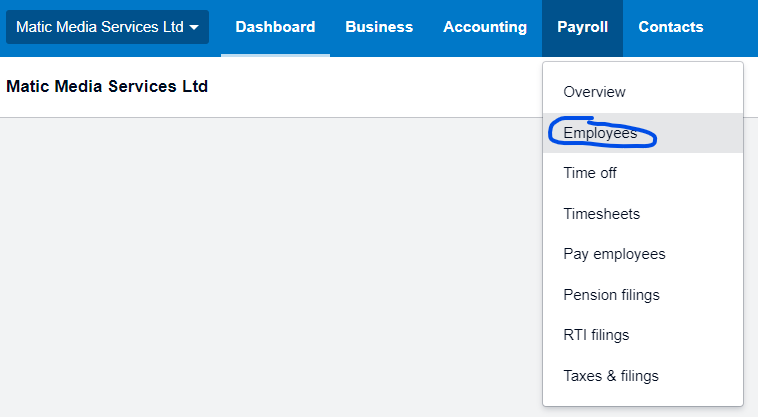
1. From the top navigation menu go to "Payroll &gt; Employees"  
      
    [![image-1653401360381.png](https://manual.maticmedia.co.uk/uploads/images/gallery/2022-05/scaled-1680-/image-1653401360381.png)](https://manual.maticmedia.co.uk/uploads/images/gallery/2022-05/image-1653401360381.png)
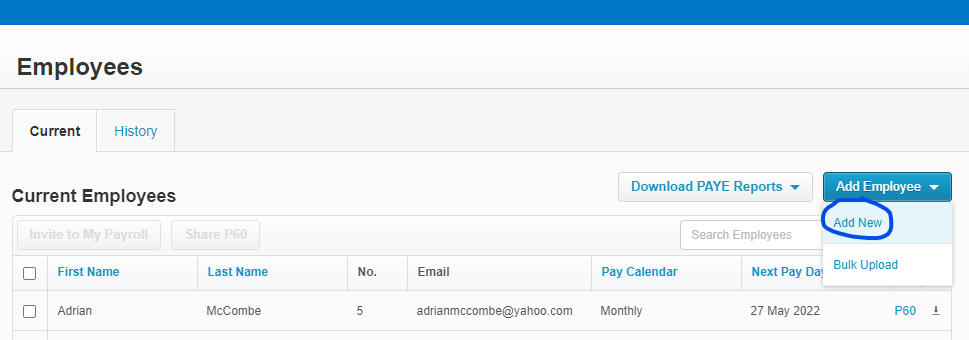
2. From the Employees Screen click "Add Employee &gt; Add New"  
      
    [![image-1653401411330.png](https://manual.maticmedia.co.uk/uploads/images/gallery/2022-05/scaled-1680-/image-1653401411330.png)](https://manual.maticmedia.co.uk/uploads/images/gallery/2022-05/image-1653401411330.png)
3. Fill in the Start Form from the collected information in the [Required Information step](#bkmrk-required-information)  
      
    [![image-1653401115169.png](https://manual.maticmedia.co.uk/uploads/images/gallery/2022-05/scaled-1680-/image-1653401115169.png)](https://manual.maticmedia.co.uk/uploads/images/gallery/2022-05/image-1653401115169.png)
4. You will then be show an incomplete Employee  
      
    [![image-1653401720363.png](https://manual.maticmedia.co.uk/uploads/images/gallery/2022-05/scaled-1680-/image-1653401720363.png)](https://manual.maticmedia.co.uk/uploads/images/gallery/2022-05/image-1653401720363.png)

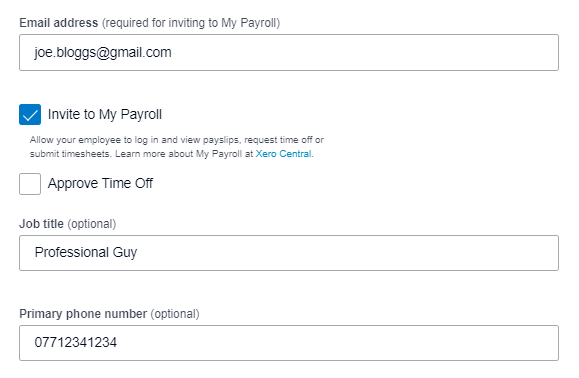
5. On the employees Details screen  
    
    1. Enter the employee's Personal Email Address
    2. Check the box for Invite to My Payroll
    3. Enter the Employee's Job Title
    4. Enter the Employees Phone Number  
          
        [![image-1653402022945.png](https://manual.maticmedia.co.uk/uploads/images/gallery/2022-05/scaled-1680-/image-1653402022945.png)](https://manual.maticmedia.co.uk/uploads/images/gallery/2022-05/image-1653402022945.png)
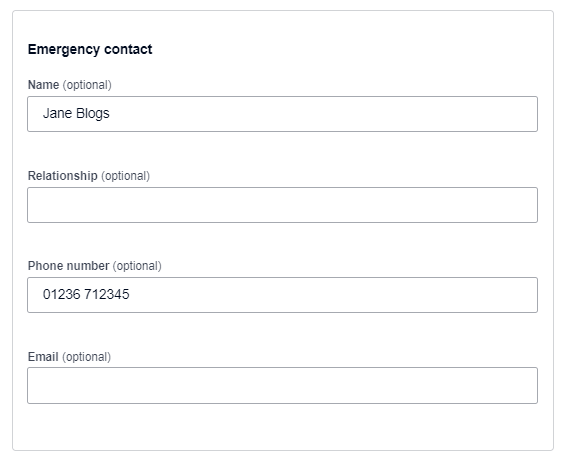
6. Click on Add Emergency Contact  
      
    [![image-1653402044241.png](https://manual.maticmedia.co.uk/uploads/images/gallery/2022-05/scaled-1680-/image-1653402044241.png)](https://manual.maticmedia.co.uk/uploads/images/gallery/2022-05/image-1653402044241.png)



    1. Enter the emergency contact information (Name and Phone Number is enough)  
        [![image-1653402089704.png](https://manual.maticmedia.co.uk/uploads/images/gallery/2022-05/scaled-1680-/image-1653402089704.png)](https://manual.maticmedia.co.uk/uploads/images/gallery/2022-05/image-1653402089704.png)
7. Click "Save &amp; Next"  
    [![image-1653402112779.png](https://manual.maticmedia.co.uk/uploads/images/gallery/2022-05/scaled-1680-/image-1653402112779.png)](https://manual.maticmedia.co.uk/uploads/images/gallery/2022-05/image-1653402112779.png)

#### Employee Employee Screen

Steps...

1. [Enter the Fields as below...](#bkmrk-fields)
2. [Enter the Salary and Wages](#bkmrk-salary-and-wages)
3. Click "Save and Next"  
    [![image-1653402112779.png](https://manual.maticmedia.co.uk/uploads/images/gallery/2022-05/scaled-1680-/image-1653402112779.png)](https://manual.maticmedia.co.uk/uploads/images/gallery/2022-05/image-1653402112779.png)

##### Fields

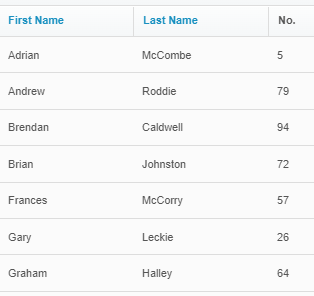
<table border="1" id="bkmrk-employee-number-this" style="border-collapse: collapse; width: 100%;"><tbody><tr><td style="width: 49.9383%;">**Employee Number**</td><td style="width: 49.9383%;">This needs to be a unique number, pick the next number from the Employees Screen  
  
e.g. in the example below it would be 95  
[![image-1653403166074.png](https://manual.maticmedia.co.uk/uploads/images/gallery/2022-05/scaled-1680-/image-1653403166074.png)](https://manual.maticmedia.co.uk/uploads/images/gallery/2022-05/image-1653403166074.png)
</td></tr><tr><td style="width: 49.9383%;">**Employment Start Date**</td><td style="width: 49.9383%;">The date the employee started. Fill this in from the details collected in [Required Information](#bkmrk-required-information)</td></tr><tr><td style="width: 49.9383%;">**Payroll Calendar**</td><td style="width: 49.9383%;">This is how often we pay the employee, as standard it is paid Monthly</td></tr><tr><td style="width: 49.9383%;">**Paid Intermittently**</td><td style="width: 49.9383%;">Their pay is intermittent e.g. long term sick or 0 hour contract</td></tr><tr><td style="width: 49.9383%;">**Holiday Group**</td><td style="width: 49.9383%;">Leave this as None</td></tr><tr><td style="width: 49.9383%;">**Employee Group**</td><td style="width: 49.9383%;">Leave this as None</td></tr><tr><td style="width: 49.9383%;">**National Insurance Number**</td><td style="width: 49.9383%;">Fill this in from the details collected in [Required Information](#bkmrk-required-information)</td></tr><tr><td style="width: 49.9383%;">**NI Category**</td><td style="width: 49.9383%;">This should be NI category A unless the employee has let us know otherwise</td></tr></tbody></table>

##### Filled in Example

#####   
[![image-1653402585413.png](https://manual.maticmedia.co.uk/uploads/images/gallery/2022-05/scaled-1680-/image-1653402585413.png)](https://manual.maticmedia.co.uk/uploads/images/gallery/2022-05/image-1653402585413.png)

#### Salary and Wages

1. Click "Change Salary and Wages"  
      
    [![image-1653402805916.png](https://manual.maticmedia.co.uk/uploads/images/gallery/2022-05/scaled-1680-/image-1653402805916.png)](https://manual.maticmedia.co.uk/uploads/images/gallery/2022-05/image-1653402805916.png)
2. Enter **"Regular Hours"** as the earnings type
3. Choose whether they are Annual (Salaried) or Hourly paid - [as in Required Information](#bkmrk-required-information)
4. Enter their hourly or salaried wage - [as in Required Information](#bkmrk-required-information)
5. Enter the number of hours they work per week - [as in Required Information](#bkmrk-required-information)
6. Enter the employee start date - [as in Required Information](#bkmrk-required-information)
7. Click "Confirm"  
    [![image-1653403039826.png](https://manual.maticmedia.co.uk/uploads/images/gallery/2022-05/scaled-1680-/image-1653403039826.png)](https://manual.maticmedia.co.uk/uploads/images/gallery/2022-05/image-1653403039826.png)

##### Example Filled in...  


[![image-1653403025339.png](https://manual.maticmedia.co.uk/uploads/images/gallery/2022-05/scaled-1680-/image-1653403025339.png)](https://manual.maticmedia.co.uk/uploads/images/gallery/2022-05/image-1653403025339.png)

### Taxes

<p class="callout warning">There are two methods for setting up an employees Tax, with or without a **P45**</p>

Steps...

#### Employee has a P45

<table border="1" id="bkmrk-starter-declaration-" style="border-collapse: collapse; width: 100%;"><tbody><tr><td style="width: 49.9383%;">**Starter declaration**</td><td style="width: 49.9383%;">a) First job in this tax year

b) Currently only working in this job (not their first job in this tax year)

c) They are working more than one job

</td></tr><tr><td style="width: 49.9383%;">**Tax Code**</td><td style="width: 49.9383%;">Match tax code with p45</td></tr><tr><td style="width: 49.9383%;">**Previous taxable pay**</td><td style="width: 49.9383%;">From the p45 copy over the previous taxable pay and previous tax paid (BOX 7 on P45)</td></tr></tbody></table>

#### Employee does not have a P45

<table border="1" id="bkmrk-starter-declaration--0" style="border-collapse: collapse; width: 100%;"><tbody><tr><td style="width: 49.9383%;">**Starter declaration**</td><td style="width: 49.9383%;">a) First job in this tax year

b) Currently only working in this job (not their first job in this tax year)

c) They are working more than one job

</td></tr><tr><td style="width: 49.9383%;">**Tax Code**</td><td style="width: 49.9383%;">Let the default tax code entered automatically by xero do the work</td></tr></tbody></table>

#### \[OPTIONAL\] Student Loans  


To add a student loan...

[![image-1653405035439.png](https://manual.maticmedia.co.uk/uploads/images/gallery/2022-05/scaled-1680-/image-1653405035439.png)](https://manual.maticmedia.co.uk/uploads/images/gallery/2022-05/image-1653405035439.png)

<table border="1" id="bkmrk-student-load-type-co" style="border-collapse: collapse; width: 100%; height: 89.3907px;"><tbody><tr style="height: 29.7969px;"><td style="width: 49.9383%; height: 29.7969px;">**Student Load Type**</td><td style="width: 49.9383%; height: 29.7969px;">Collected in [required information](#bkmrk-required-information)</td></tr><tr style="height: 29.7969px;"><td style="width: 49.9383%; height: 29.7969px;">**Start date**</td><td style="width: 49.9383%; height: 29.7969px;">Collected in [required information](#bkmrk-required-information)</td></tr><tr style="height: 29.7969px;"><td style="width: 49.9383%; height: 29.7969px;">**End date**</td><td style="width: 49.9383%; height: 29.7969px;">Collected in [required information](#bkmrk-required-information)</td></tr></tbody></table>

Once all tax information is completed click "Save and Next"

[![image-1653402112779.png](https://manual.maticmedia.co.uk/uploads/images/gallery/2022-05/scaled-1680-/image-1653402112779.png)](https://manual.maticmedia.co.uk/uploads/images/gallery/2022-05/image-1653402112779.png)

### Pension

<p class="callout warning">Employees are given the option to pay into the company pension scheme, our is run by Nest but if employees have a private pension they can pay directly into that.</p>

##### If a employee has a private pension

<p class="callout info">**Ask Robert**</p>

##### If an employee is using auto-enrolment (Nest)

1. Click "Needs to be assessed for auto enrolment"  
    [![image-1653405482201.png](https://manual.maticmedia.co.uk/uploads/images/gallery/2022-05/scaled-1680-/image-1653405482201.png)](https://manual.maticmedia.co.uk/uploads/images/gallery/2022-05/image-1653405482201.png)

2. Click "Save"  
    [![image-1653405517842.png](https://manual.maticmedia.co.uk/uploads/images/gallery/2022-05/scaled-1680-/image-1653405517842.png)](https://manual.maticmedia.co.uk/uploads/images/gallery/2022-05/image-1653405517842.png)
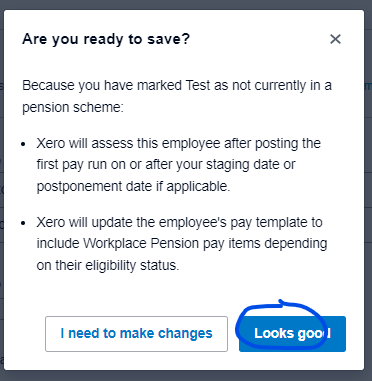
3. Click "Looks Good"  
      
    [![image-1653405622286.png](https://manual.maticmedia.co.uk/uploads/images/gallery/2022-05/scaled-1680-/image-1653405622286.png)](https://manual.maticmedia.co.uk/uploads/images/gallery/2022-05/image-1653405622286.png)
#### Set up Time Off (Holidays)

On the time off screen  
[![image-1653405569880.png](https://manual.maticmedia.co.uk/uploads/images/gallery/2022-05/scaled-1680-/image-1653405569880.png)](https://manual.maticmedia.co.uk/uploads/images/gallery/2022-05/image-1653405569880.png)

<p class="callout danger">**For 2022 Only - You need to calculate the total allowance for the year and then deduct off the allowance between 01/01/2022 and 01/04/2022**</p>

##### Calculate the number of holidays in hours an employee has

- All employees are entitled to 5.6 weeks of holidays a year including bank holidays
- In days this is 28 days
- In hours this is 224 hours
- Or 0.1076923076923077 hours per hour worked

<p class="callout danger">**OUR HOLIDAY YEAR RUNS JANUARY TO DECEMBER NOT APRIL TO APRIL**</p>

##### To calculate the number of hours a new start has for a full year.

<p class="callout info">224 hours - business holidays in hours = allowance</p>

##### To calculate the number of hours a new start starting part way through a year

Use the allowance calculator provided by uk gov - [Calculate holiday entitlement - GOV.UK (www.gov.uk)](https://www.gov.uk/calculate-your-holiday-entitlement)

AMOUNT PROVIDED BY GOV WEBSITE - BUSINESS HOLIDAYS IN HOURS = ALLOWANCE

e.g

**Employee starts on 1st of May, works 40 hours per week**  
  
152 Hours

**How many company holidays are left between 1st of May and 31st December 2022?**

You can view this on the holiday calendar here: [Matic Media Holiday Calendar](http://mail.maticmedia.co.uk:81/home/holidays@maticmedia.co.uk/Calendar.html?view=month&date=20220524)

- June Jubliee Bank Holiday (2 days - 8 hours x 2 = 16 hours)
- December 25th - 31th (5 days - 8 hours x 5 = 40 hours)

Total business holidays - 56 hours

**How many holidays left?**

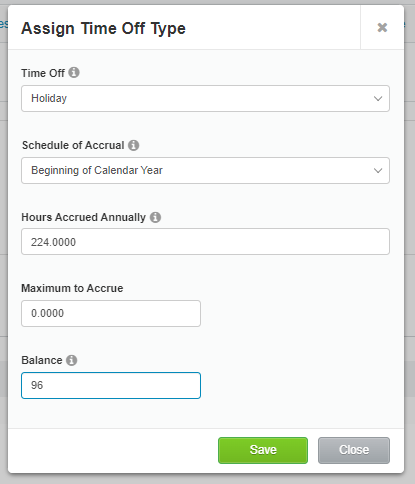
152 hours - 56 hours = 96 hours

##### How to apply hours...

1. Click assign time off  
    [![image-1653406810970.png](https://manual.maticmedia.co.uk/uploads/images/gallery/2022-05/scaled-1680-/image-1653406810970.png)](https://manual.maticmedia.co.uk/uploads/images/gallery/2022-05/image-1653406810970.png)
2. Fill in the form as below and enter in the calculated number of holidays.

[![image-1653406843075.png](https://manual.maticmedia.co.uk/uploads/images/gallery/2022-05/scaled-1680-/image-1653406843075.png)](https://manual.maticmedia.co.uk/uploads/images/gallery/2022-05/image-1653406843075.png)
# Making an Employee a Leaver

<p class="callout danger">**AN EMPLOYEE SHOULD ONLY BE MADE A LEAVER AFTER THEIR FINAL [PAY RUN](https://manual.maticmedia.co.uk/books/payroll/chapter/pay-run "Pay Run") IS COMPLETED.** </p>

<p class="callout danger">**LEAVER PAY RUNS SHOULD BE DOWN IN SEPARATE PAY RUNS**</p>

<p class="callout danger">**HOLIDAYS REMAINING CAN BE A NEGATIVE, IN THIS CASE THEY SHOULD BE A DEDUCTION - EXACTLY THE SAME PROCESS, EXCEPT NEGATIVE HOURS**</p>

<p class="callout danger">**FOR 2022 LEAVERS AN ADDITIONAL 55.3HOURS MUST BE DEDUCTED OFF THE ALLOWANCE**</p>

## Steps to ending an employee's employment in Xero...

1. [Calculate the number of holidays an Employee has left](#bkmrk-calculate-the-number-0)
2. Ask Richard or Robert about any outstanding deductions an employee has
3. Do a [Pay Run for only the leaver](https://manual.maticmedia.co.uk/books/payroll/chapter/pay-run "Pay Run")
4. When doing the Pay Run add the 
    1. [Holidays Left (or Deduct over holiday allocation)](https://manual.maticmedia.co.uk/books/payroll/page/adding-holidays "Adding Holidays")
    2. [Any other deductions](https://manual.maticmedia.co.uk/books/payroll/page/adding-deductions "Adding Deductions")
5. End the employee's employment
6. Generate the employee's P45

### Calculate the number of holidays an employee has left

Steps...

1. [Use GOV website use the calculator to find out the number of holidays the employee is due for the period they have worked of the holiday year](#bkmrk-use-gov-website-use--0)
2. [Total the holidays an employee has used in the holiday year](#bkmrk-total-the-holidays-a)
3. Deduct the total holidays from the remaining holiday allowance

#### Use GOV website use the calculator to find out the number of holidays the employee is due for the period they have worked of the holiday year

Using the calculator at [Calculate holiday entitlement - GOV.UK (www.gov.uk)](https://www.gov.uk/calculate-your-holiday-entitlement) enter the following information

- Year Start Date - **This is always the first of January**
- Employee Start Date (if within this holiday year)
- Employee Leave Date
- Employee Hours Per Week
- Employee Days Per Week

The calculator will tell you the number of hours the employee is entitled to.

#### Total the holidays an employee has used in the holiday year

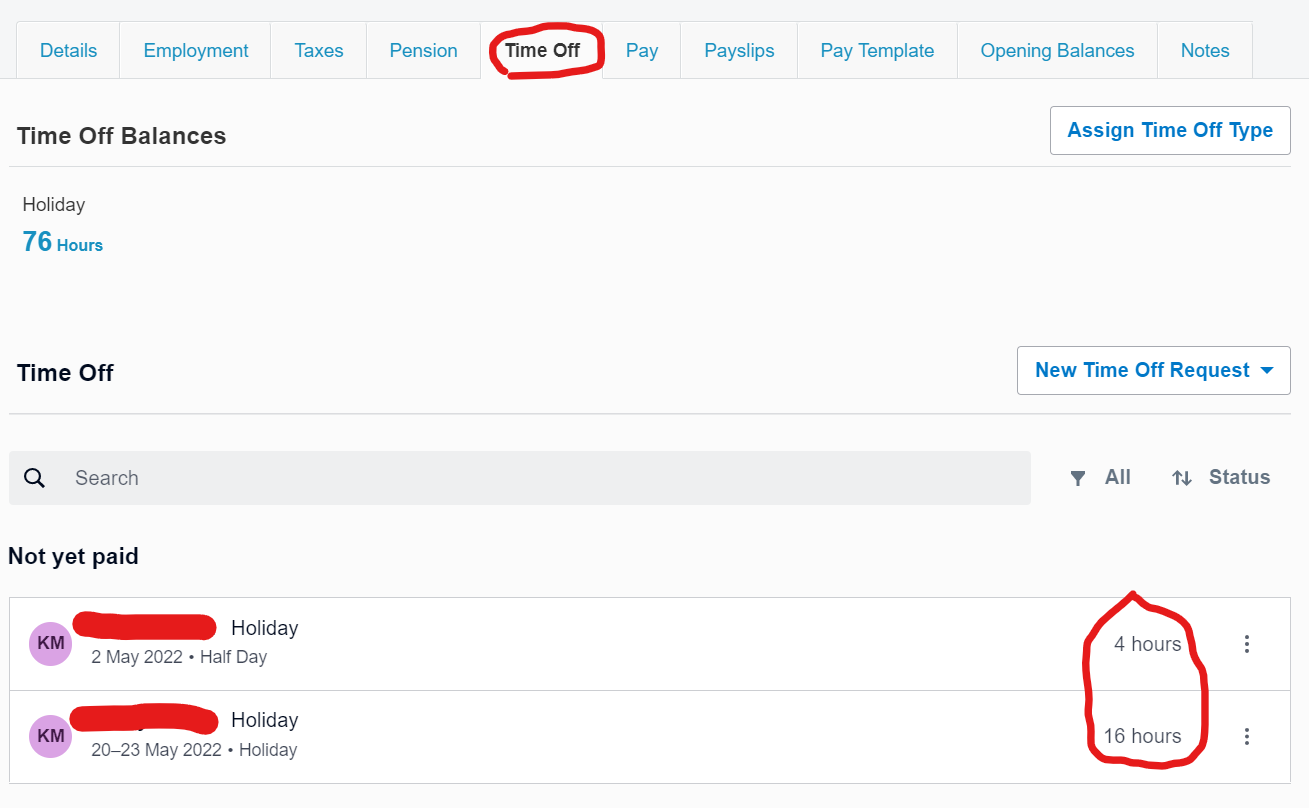
Total any holidays the employee has had in this from the entitled to calculation. You can get a total calculation from the employee's screen and the **"Time Off" section.**

1. Add up all the hours in the time off section up to the point of the employee's end date.
2. In the example below the employee has had **20 hours total paid Holiday  
    (In this example the employee's last date is the 1st of June 2022)**

<p class="callout danger">**Remember to add on business holidays to this amount, they are not automatically added to this list**</p>

[![image-1653421244661.png](https://manual.maticmedia.co.uk/uploads/images/gallery/2022-05/scaled-1680-/image-1653421244661.png)](https://manual.maticmedia.co.uk/uploads/images/gallery/2022-05/image-1653421244661.png)

#### Deduct the total holidays from the remaining holiday allowance

<p class="callout info">**Equation to be used:** Total remaining holidays to be paid = Remaining allowance = holidays used</p>

##### Example in use

Leaver started in 2011, leaving on the 1st of June 2022.

<table border="1" id="bkmrk-leaver-start-date-01" style="border-collapse: collapse; width: 100%;"><tbody><tr><td style="width: 49.9383%;">**Leaver Start Date**</td><td style="width: 49.9383%;">01/02/2011</td></tr><tr><td style="width: 49.9383%;">**Leaver End Date**</td><td style="width: 49.9383%;">01/05/2022</td></tr><tr><td style="width: 49.9383%;">**Holiday Allowance (Using Calculator)**</td><td style="width: 49.9383%;">93.3</td></tr><tr><td style="width: 49.9383%;">**Holidays Allowance Used**</td><td style="width: 49.9383%;">20</td></tr><tr><td style="width: 49.9383%;">**Business Holidays Used**</td><td style="width: 49.9383%;">16</td></tr><tr><td style="width: 49.9383%;">**Total Allowance Used**</td><td style="width: 49.9383%;">36</td></tr><tr><td style="width: 49.9383%;">**Holidays Remaining**</td><td style="width: 49.9383%;">57.3 = round up to nearest hour = 58</td></tr></tbody></table>

### End the employee's employment

After finishing the

# Changing an Employee Wage / Hourly Rate

#### Step 1: Go to Employee's Screen  


[![image-1653495544557.png](https://manual.maticmedia.co.uk/uploads/images/gallery/2022-05/scaled-1680-/image-1653495544557.png)](https://manual.maticmedia.co.uk/uploads/images/gallery/2022-05/image-1653495544557.png)

Select the employee...

[![image-1653495575928.png](https://manual.maticmedia.co.uk/uploads/images/gallery/2022-05/scaled-1680-/image-1653495575928.png)](https://manual.maticmedia.co.uk/uploads/images/gallery/2022-05/image-1653495575928.png)

#### Step 2: Go to Employee's Employment Screen

[![image-1653495527203.png](https://manual.maticmedia.co.uk/uploads/images/gallery/2022-05/scaled-1680-/image-1653495527203.png)](https://manual.maticmedia.co.uk/uploads/images/gallery/2022-05/image-1653495527203.png)

#### Step 3: Select **"Change salary and wages"**

[![image-1653495642765.png](https://manual.maticmedia.co.uk/uploads/images/gallery/2022-05/scaled-1680-/image-1653495642765.png)](https://manual.maticmedia.co.uk/uploads/images/gallery/2022-05/image-1653495642765.png)

#### Step 4: Enter new pay rate and the start date from which the new pay rate begins

[![image-1653495760421.png](https://manual.maticmedia.co.uk/uploads/images/gallery/2022-05/scaled-1680-/image-1653495760421.png)](https://manual.maticmedia.co.uk/uploads/images/gallery/2022-05/image-1653495760421.png)

#### Step 5: Repeat step 4 for additional pay rates   
(Overtime, Nightshift allowance, etc)

# Setting an Employee's Holidays

# Pay Run


# What is a Pay Run?


# New Page


# Creating a Pay Run

## Process for Creating a Pay Run

1. Go to **"Payroll &gt; Pay employees"  
    [![image-1653422712957.png](https://manual.maticmedia.co.uk/uploads/images/gallery/2022-05/scaled-1680-/image-1653422712957.png)](https://manual.maticmedia.co.uk/uploads/images/gallery/2022-05/image-1653422712957.png)**
2. Select whether the pay run is either: 
    1. A standard pay run (Monthly pay run, runs on the 27th)
    2. Unscheduled pay run (can be run anytime e.g. [**leaver pay run**](https://manual.maticmedia.co.uk/books/payroll/page/making-an-employee-a-leaver "Making an Employee a Leaver"))  
        [![image-1653422868602.png](https://manual.maticmedia.co.uk/uploads/images/gallery/2022-05/scaled-1680-/image-1653422868602.png)](https://manual.maticmedia.co.uk/uploads/images/gallery/2022-05/image-1653422868602.png)
3. Then click ****"Process Pay Run"**** [![image-1653422962955.png](https://manual.maticmedia.co.uk/uploads/images/gallery/2022-05/scaled-1680-/image-1653422962955.png)](https://manual.maticmedia.co.uk/uploads/images/gallery/2022-05/image-1653422962955.png)
4. Enter the date the employees are to be paid  
    [![image-1653423303033.png](https://manual.maticmedia.co.uk/uploads/images/gallery/2022-05/scaled-1680-/image-1653423303033.png)](https://manual.maticmedia.co.uk/uploads/images/gallery/2022-05/image-1653423303033.png)
5. You can add a message to be written on the payslips here  
    [![image-1653423341309.png](https://manual.maticmedia.co.uk/uploads/images/gallery/2022-05/scaled-1680-/image-1653423341309.png)](https://manual.maticmedia.co.uk/uploads/images/gallery/2022-05/image-1653423341309.png)
6. Select the employees to be included in the pay run  
    [![image-1653423360523.png](https://manual.maticmedia.co.uk/uploads/images/gallery/2022-05/scaled-1680-/image-1653423360523.png)](https://manual.maticmedia.co.uk/uploads/images/gallery/2022-05/image-1653423360523.png)

### Unscheduled Pay Runs

When you select an unscheduled pay run, you have to select the tax year and the pay period that the unscheduled pay run is relevant.

[![image-1653423175696.png](https://manual.maticmedia.co.uk/uploads/images/gallery/2022-05/scaled-1680-/image-1653423175696.png)](https://manual.maticmedia.co.uk/uploads/images/gallery/2022-05/image-1653423175696.png)

# Adding Holidays

<p class="callout danger">**EMPLOYEE HOLIDAYS MUST BE ADDED BEFORE A PAY RUN IS STARTED, UNLESS BEING MANUALLY ADDED.**</p>

### Adding Holidays via the Employee Time Off Screen

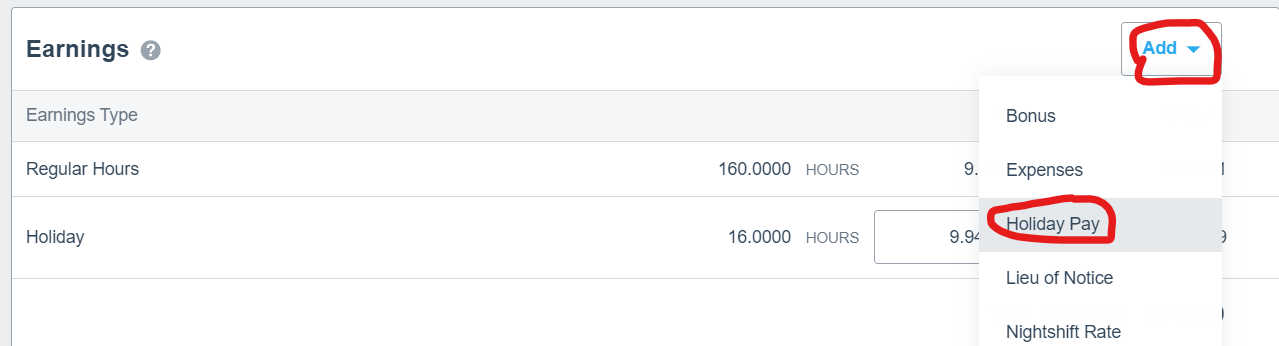
### Adding Holidays as a Pay Run Line

<p class="callout warning">This technique should only be used as an amendment to a payslip as they are not automatically deducted off an employee's holiday allowance.</p>

On the payslip screen...

[![image-1653424041670.png](https://manual.maticmedia.co.uk/uploads/images/gallery/2022-05/scaled-1680-/image-1653424041670.png)](https://manual.maticmedia.co.uk/uploads/images/gallery/2022-05/image-1653424041670.png)

Enter the number of hours and the rate per hour to pay at

[![image-1653424338646.png](https://manual.maticmedia.co.uk/uploads/images/gallery/2022-05/scaled-1680-/image-1653424338646.png)](https://manual.maticmedia.co.uk/uploads/images/gallery/2022-05/image-1653424338646.png)

# Adding Overtime

To add Overtime is done from the employee payslip screen

<p class="callout info">Overtime is paid at time and a half (1.5 x standard hourly rate)</p>

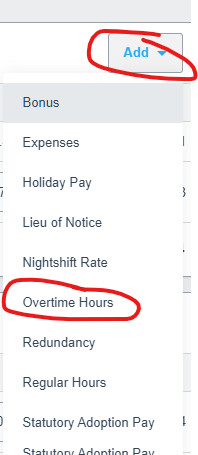
1. Click **"Add"** and Select ****"Overtime"**** [![image-1653499182921.png](https://manual.maticmedia.co.uk/uploads/images/gallery/2022-05/scaled-1680-/image-1653499182921.png)](https://manual.maticmedia.co.uk/uploads/images/gallery/2022-05/image-1653499182921.png)
2. Enter the number of hours in the box  
    [![image-1653499240193.png](https://manual.maticmedia.co.uk/uploads/images/gallery/2022-05/scaled-1680-/image-1653499240193.png)](https://manual.maticmedia.co.uk/uploads/images/gallery/2022-05/image-1653499240193.png)

# Adding Sick Days


# Adding Deductions


# Paying via BACs

### To start the payment run....

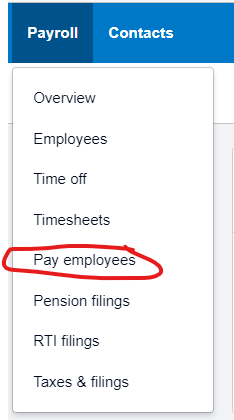
1. Go to the pay run for the month you want to process  
      
    [![image-1653567938416.png](https://manual.maticmedia.co.uk/uploads/images/gallery/2022-05/scaled-1680-/image-1653567938416.png)](https://manual.maticmedia.co.uk/uploads/images/gallery/2022-05/image-1653567938416.png)
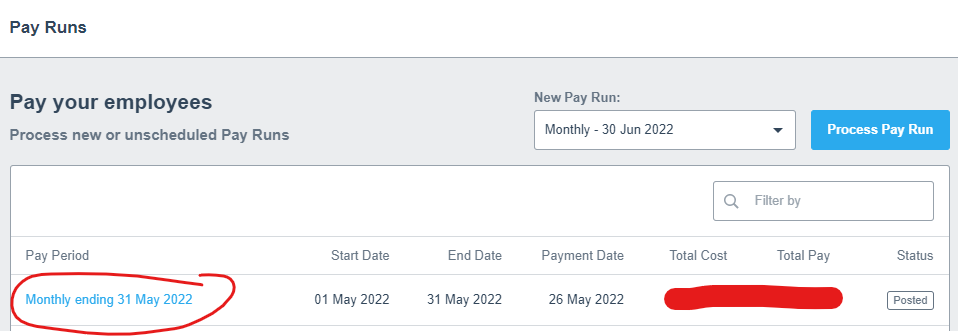
2. Click on the pay run you want to pay  
      
    [![image-1653567978889.png](https://manual.maticmedia.co.uk/uploads/images/gallery/2022-05/scaled-1680-/image-1653567978889.png)](https://manual.maticmedia.co.uk/uploads/images/gallery/2022-05/image-1653567978889.png)
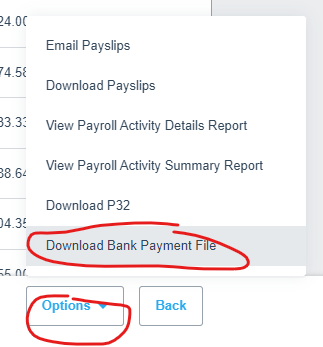
3. Click on **"Options"** then ****"Download Bank Payment File"**** [![image-1653568024695.png](https://manual.maticmedia.co.uk/uploads/images/gallery/2022-05/scaled-1680-/image-1653568024695.png)](https://manual.maticmedia.co.uk/uploads/images/gallery/2022-05/image-1653568024695.png)
4. Select ****"BACS File"**** [![image-1653568051029.png](https://manual.maticmedia.co.uk/uploads/images/gallery/2022-05/scaled-1680-/image-1653568051029.png)](https://manual.maticmedia.co.uk/uploads/images/gallery/2022-05/image-1653568051029.png)
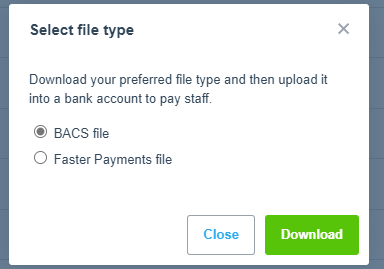
5. Click Download  
    [![image-1653568062991.png](https://manual.maticmedia.co.uk/uploads/images/gallery/2022-05/scaled-1680-/image-1653568062991.png)](https://manual.maticmedia.co.uk/uploads/images/gallery/2022-05/image-1653568062991.png)

6. The file will be downloaded to your **Downloads** folder
7. Copy the file to the Financials Folder on Nethdd  
    > \\\\192.168.0.10\\nethdd\\Staff Folder\\Richard\\Richard backup\\Popcorn\\Popcorn\\Accounts\\Financials\\Payroll Reports\\\[\[ENTER FINANCIAL YEAR HERE\]\]\\\[\[ENTER MONTH HERE\]\]
    
    [![image-1653568255043.png](https://manual.maticmedia.co.uk/uploads/images/gallery/2022-05/scaled-1680-/image-1653568255043.png)](https://manual.maticmedia.co.uk/uploads/images/gallery/2022-05/image-1653568255043.png)
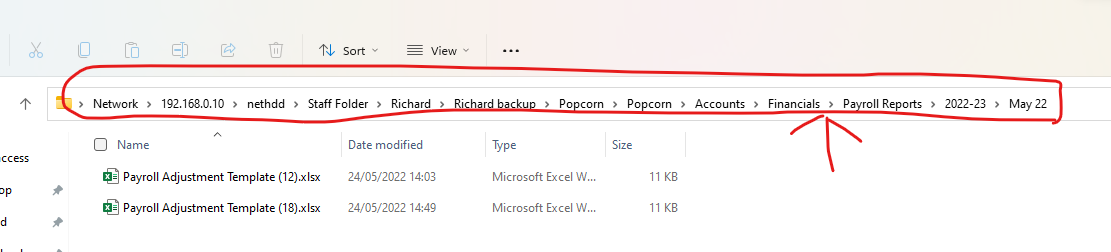
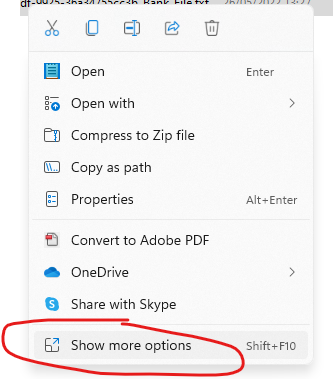
8. Rename the Downloaded Bacs File to the month and financial year e.g. May-22-PAYROLL  
      
    [![image-1653568335829.png](https://manual.maticmedia.co.uk/uploads/images/gallery/2022-05/scaled-1680-/image-1653568335829.png)](https://manual.maticmedia.co.uk/uploads/images/gallery/2022-05/image-1653568335829.png)
    
    [![image-1653568353055.png](https://manual.maticmedia.co.uk/uploads/images/gallery/2022-05/scaled-1680-/image-1653568353055.png)](https://manual.maticmedia.co.uk/uploads/images/gallery/2022-05/image-1653568353055.png)
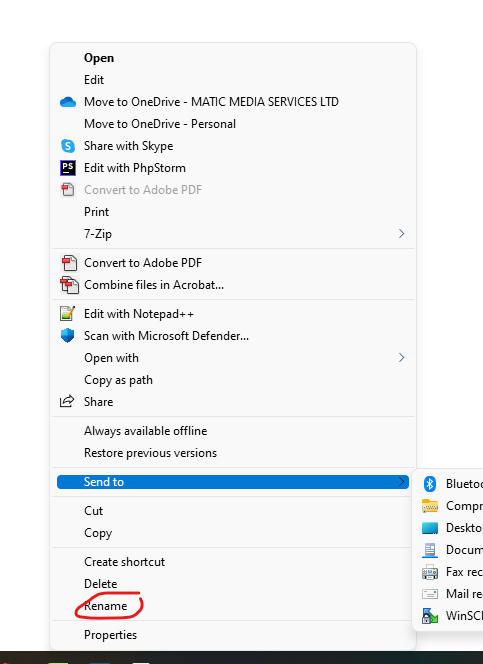
9. File after being renamed should look like below....  
      
    [![image-1653568411223.png](https://manual.maticmedia.co.uk/uploads/images/gallery/2022-05/scaled-1680-/image-1653568411223.png)](https://manual.maticmedia.co.uk/uploads/images/gallery/2022-05/image-1653568411223.png)

10. Go to BANKLINE
11. Login as per usual
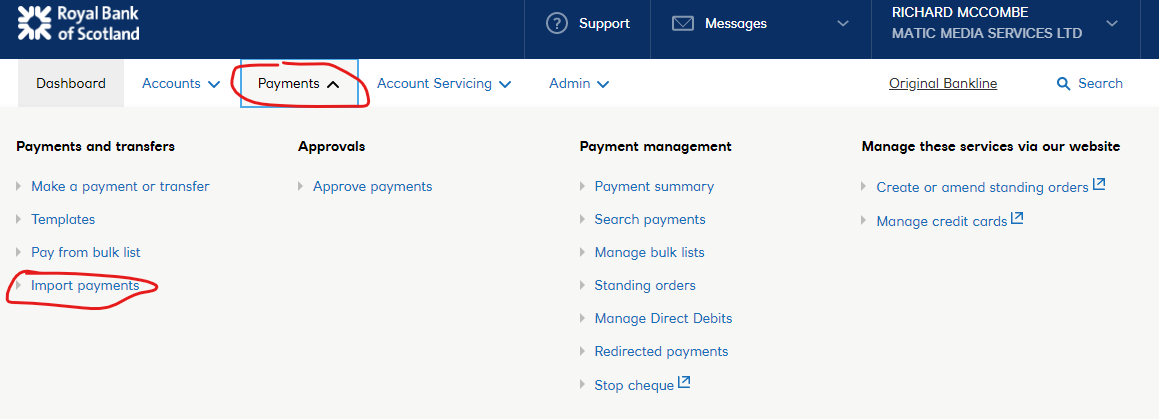
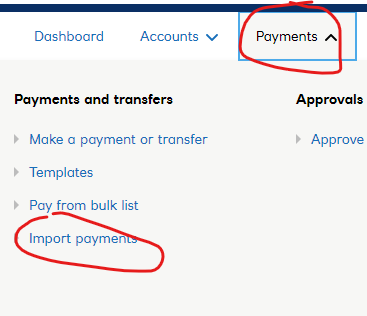
12. Click on **"Payments"** &gt; ****"Import Payments"**** [![image-1653568669276.png](https://manual.maticmedia.co.uk/uploads/images/gallery/2022-05/scaled-1680-/image-1653568669276.png)](https://manual.maticmedia.co.uk/uploads/images/gallery/2022-05/image-1653568669276.png)
13. Click ****"Choose FIle"**** [![image-1653568755089.png](https://manual.maticmedia.co.uk/uploads/images/gallery/2022-05/scaled-1680-/image-1653568755089.png)](https://manual.maticmedia.co.uk/uploads/images/gallery/2022-05/image-1653568755089.png)

14. Navigate to the folder from step 7 and select the copied BACs file  
      
    [![image-1653568803895.png](https://manual.maticmedia.co.uk/uploads/images/gallery/2022-05/scaled-1680-/image-1653568803895.png)](https://manual.maticmedia.co.uk/uploads/images/gallery/2022-05/image-1653568803895.png)
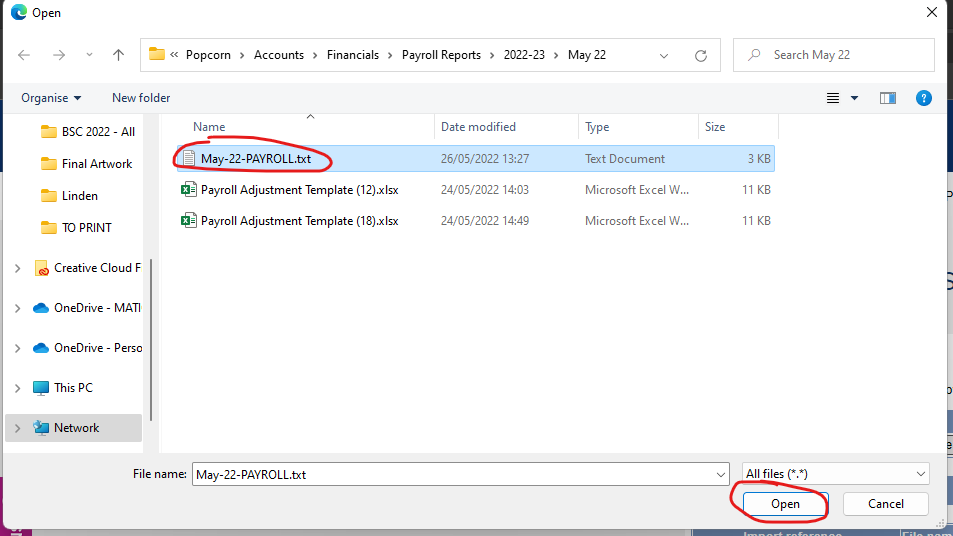
15. Press "GO"  
    [![image-1653568824541.png](https://manual.maticmedia.co.uk/uploads/images/gallery/2022-05/scaled-1680-/image-1653568824541.png)](https://manual.maticmedia.co.uk/uploads/images/gallery/2022-05/image-1653568824541.png)
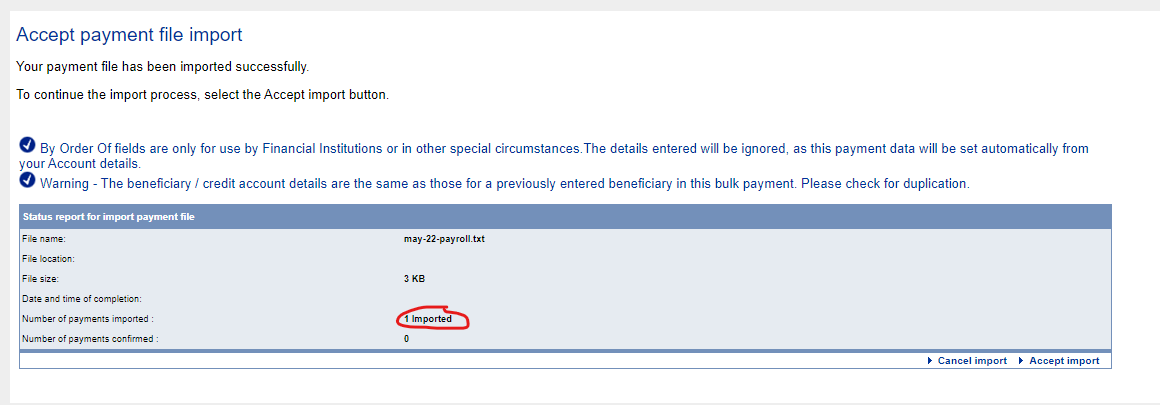
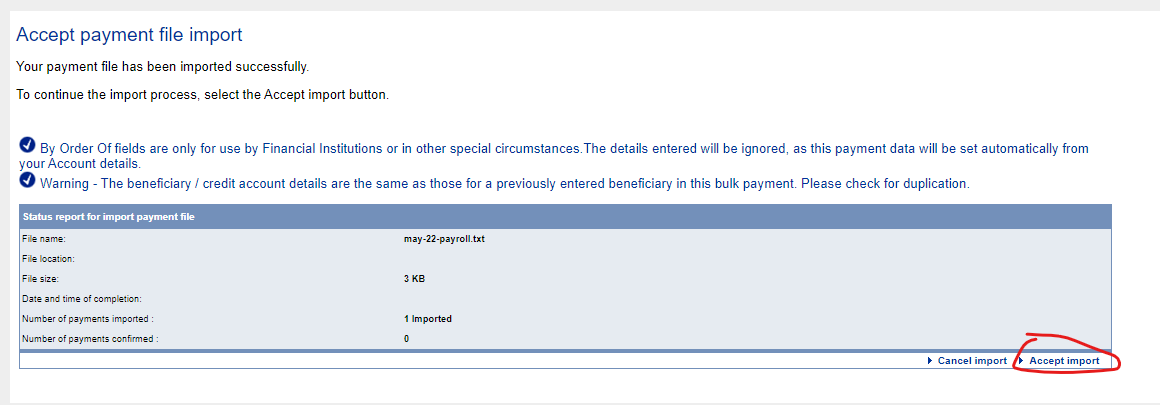
16. You should see a screen like below, with the number of payments imported as 1  
    <p class="callout danger">IT IS VERY IMPORTANT THAT IS SHOWS THE NUMBER OF IMPORTS AS 1</p>
    
    [![image-1653568893917.png](https://manual.maticmedia.co.uk/uploads/images/gallery/2022-05/scaled-1680-/image-1653568893917.png)](https://manual.maticmedia.co.uk/uploads/images/gallery/2022-05/image-1653568893917.png)
17. Click "Accept Import"  
      
    [![image-1653568923569.png](https://manual.maticmedia.co.uk/uploads/images/gallery/2022-05/scaled-1680-/image-1653568923569.png)](https://manual.maticmedia.co.uk/uploads/images/gallery/2022-05/image-1653568923569.png)
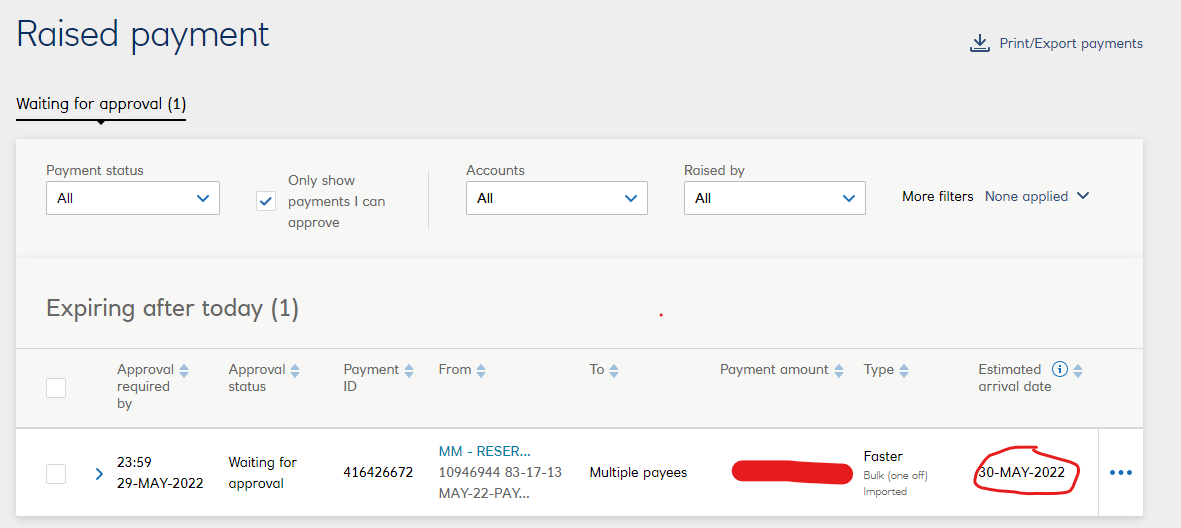
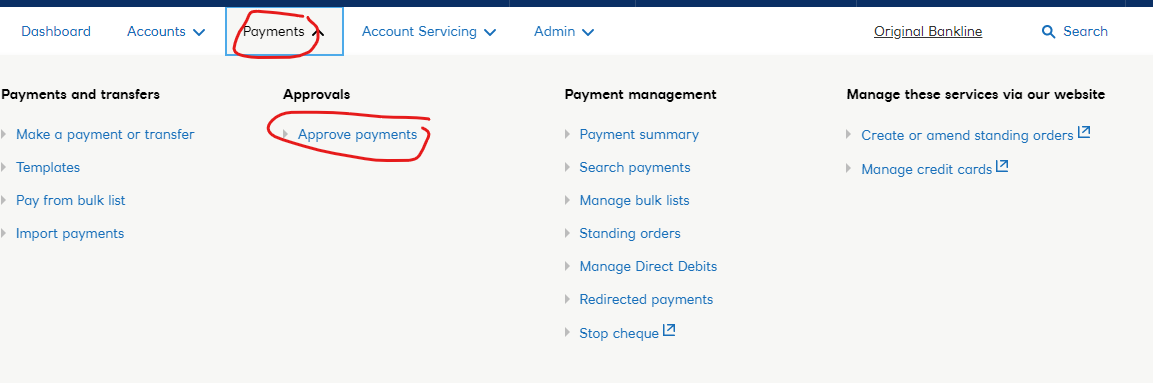
18. Go to **Payments** and **Approve Payments** from the navigation menu  
      
    [![image-1653568963042.png](https://manual.maticmedia.co.uk/uploads/images/gallery/2022-05/scaled-1680-/image-1653568963042.png)](https://manual.maticmedia.co.uk/uploads/images/gallery/2022-05/image-1653568963042.png)
19. If the Raised payment screen shows no payments awaiting approval then go to[ Raised payment shows no payments awaiting approval](#bkmrk-raised-payment-shows) otherwise continue on to step 20.
20. The below value   
      
      
    [![image-1653570398500.png](https://manual.maticmedia.co.uk/uploads/images/gallery/2022-05/scaled-1680-/image-1653570398500.png)](https://manual.maticmedia.co.uk/uploads/images/gallery/2022-05/image-1653570398500.png)
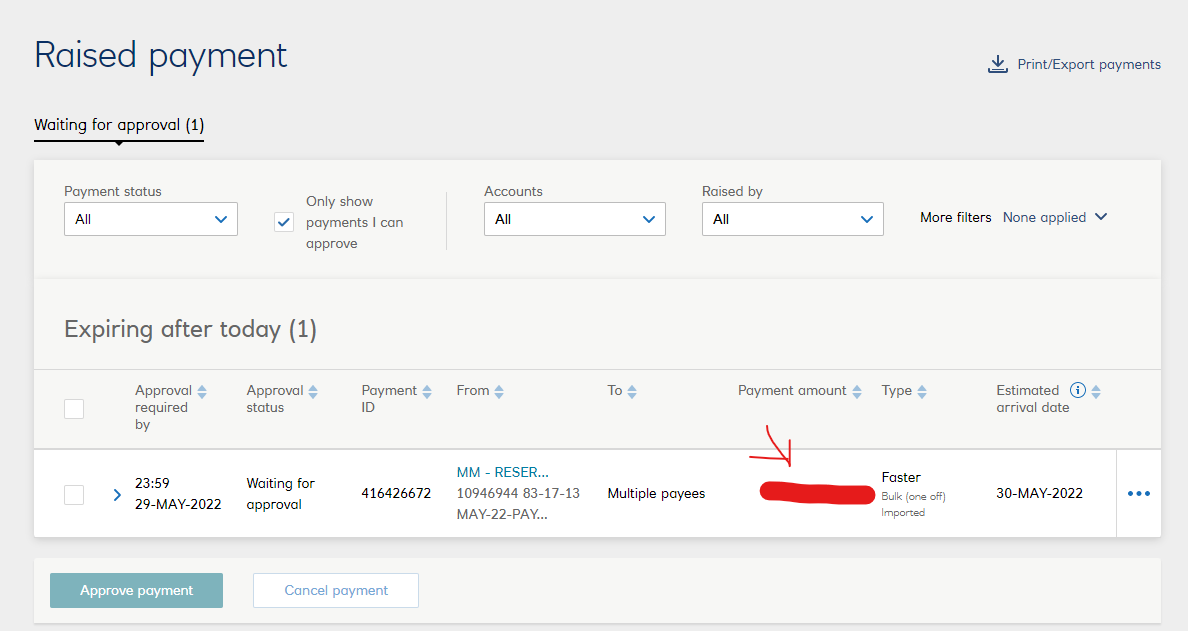
    
      
    Should match this value in xero (on the payrun)  
    [![image-1653570485204.png](https://manual.maticmedia.co.uk/uploads/images/gallery/2022-05/scaled-1680-/image-1653570485204.png)](https://manual.maticmedia.co.uk/uploads/images/gallery/2022-05/image-1653570485204.png)

21. Double check the pay dates  
    <p class="callout danger">The value below should be on or before the 27th of the month  
    </p>
    
      
    [![image-1653570548659.png](https://manual.maticmedia.co.uk/uploads/images/gallery/2022-05/scaled-1680-/image-1653570548659.png)](https://manual.maticmedia.co.uk/uploads/images/gallery/2022-05/image-1653570548659.png)
22. If the date is not correct follow:[ Date is not the correct payment date](#bkmrk-date-is-not-the-corr)
23. Approve the payment as usual
24. Transfer enough money to cover wages into reserve account  
      
    From 2849 to 6944 (round up to nearest £1,000)  
      
    <p class="callout danger">**DON'T BLOODY FORGET TO DO THIS**</p>
25. Setup the HMRC Payment

## Setup HMRC Payment

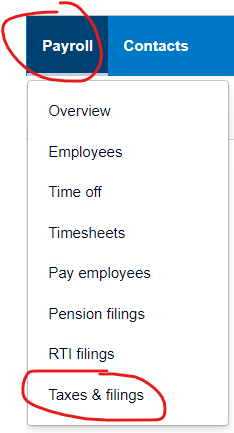
1. Go to **Payroll** &gt; ****Taxes &amp; Filings**** [![image-1653571479416.png](https://manual.maticmedia.co.uk/uploads/images/gallery/2022-05/scaled-1680-/image-1653571479416.png)](https://manual.maticmedia.co.uk/uploads/images/gallery/2022-05/image-1653571479416.png)
2. Take this figure here from the month submission:  
      
    [![image-1653571536829.png](https://manual.maticmedia.co.uk/uploads/images/gallery/2022-05/scaled-1680-/image-1653571536829.png)](https://manual.maticmedia.co.uk/uploads/images/gallery/2022-05/image-1653571536829.png)

3. Go to BANKLINE
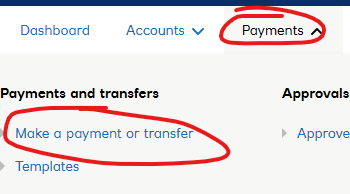
4. Go to **Payments** &gt; ****Make a payment or transfer**** [![image-1653571679138.png](https://manual.maticmedia.co.uk/uploads/images/gallery/2022-05/scaled-1680-/image-1653571679138.png)](https://manual.maticmedia.co.uk/uploads/images/gallery/2022-05/image-1653571679138.png)
5. Select make a payment from a template  
    [![image-1653571697791.png](https://manual.maticmedia.co.uk/uploads/images/gallery/2022-05/scaled-1680-/image-1653571697791.png)](https://manual.maticmedia.co.uk/uploads/images/gallery/2022-05/image-1653571697791.png)

6. Select ****HMRC CUMBERNAULD**** [![image-1653571738338.png](https://manual.maticmedia.co.uk/uploads/images/gallery/2022-05/scaled-1680-/image-1653571738338.png)](https://manual.maticmedia.co.uk/uploads/images/gallery/2022-05/image-1653571738338.png)

7. Select "**Make Payment**"  
    [![image-1653571760019.png](https://manual.maticmedia.co.uk/uploads/images/gallery/2022-05/scaled-1680-/image-1653571760019.png)](https://manual.maticmedia.co.uk/uploads/images/gallery/2022-05/image-1653571760019.png)

8. The payment date should be on or before the 16th of the Month i.e. the first working day before the 16th if it falls on a bank holiday or weekend.
9. Take the amount from Step 2 and past it into the amount box  
    [![image-1653571910569.png](https://manual.maticmedia.co.uk/uploads/images/gallery/2022-05/scaled-1680-/image-1653571910569.png)](https://manual.maticmedia.co.uk/uploads/images/gallery/2022-05/image-1653571910569.png)
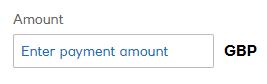
10. Click "**Raise Payment**"  
    [![image-1653571966742.png](https://manual.maticmedia.co.uk/uploads/images/gallery/2022-05/scaled-1680-/image-1653571966742.png)](https://manual.maticmedia.co.uk/uploads/images/gallery/2022-05/image-1653571966742.png)

11. Approve the payment as normal  
      
    <p class="callout danger">**DON'T BLOODY FORGET TO TRANSFER MONEY INTO THE RESERVES ACCOUNT**</p>

## Date is not the correct payment date

1. Go to Payments &gt; Imports  
      
    [![image-1653570638508.png](https://manual.maticmedia.co.uk/uploads/images/gallery/2022-05/scaled-1680-/image-1653570638508.png)](https://manual.maticmedia.co.uk/uploads/images/gallery/2022-05/image-1653570638508.png)
2. Click on the import  
    [![image-1653570658778.png](https://manual.maticmedia.co.uk/uploads/images/gallery/2022-05/scaled-1680-/image-1653570658778.png)](https://manual.maticmedia.co.uk/uploads/images/gallery/2022-05/image-1653570658778.png)

3. Click on the import on "Awaiting Authorisation"  
      
    [![image-1653570700948.png](https://manual.maticmedia.co.uk/uploads/images/gallery/2022-05/scaled-1680-/image-1653570700948.png)](https://manual.maticmedia.co.uk/uploads/images/gallery/2022-05/image-1653570700948.png)
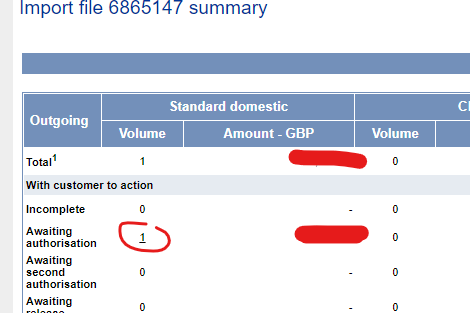
4. Click the payment ref  
      
    [![image-1653570760722.png](https://manual.maticmedia.co.uk/uploads/images/gallery/2022-05/scaled-1680-/image-1653570760722.png)](https://manual.maticmedia.co.uk/uploads/images/gallery/2022-05/image-1653570760722.png)
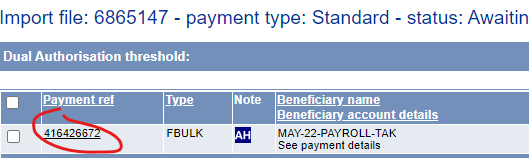
5. Click ****edit payment details****   
    [![image-1653570784319.png](https://manual.maticmedia.co.uk/uploads/images/gallery/2022-05/scaled-1680-/image-1653570784319.png)](https://manual.maticmedia.co.uk/uploads/images/gallery/2022-05/image-1653570784319.png)

6. Change the date to the date you want the money ****to arrive in employee's bank account**** [![image-1653570831952.png](https://manual.maticmedia.co.uk/uploads/images/gallery/2022-05/scaled-1680-/image-1653570831952.png)](https://manual.maticmedia.co.uk/uploads/images/gallery/2022-05/image-1653570831952.png)

7. Click confirm changes  
    [![image-1653570882065.png](https://manual.maticmedia.co.uk/uploads/images/gallery/2022-05/scaled-1680-/image-1653570882065.png)](https://manual.maticmedia.co.uk/uploads/images/gallery/2022-05/image-1653570882065.png)

8. Either click **"Confirm payment"**  
      
    [![image-1653570937861.png](https://manual.maticmedia.co.uk/uploads/images/gallery/2022-05/scaled-1680-/image-1653570937861.png)](https://manual.maticmedia.co.uk/uploads/images/gallery/2022-05/image-1653570937861.png)

9. Approve the payment as usual

## Raised payment shows no payments awaiting approval

If the raised payment screen looks like below....

[![image-1653569148082.png](https://manual.maticmedia.co.uk/uploads/images/gallery/2022-05/scaled-1680-/image-1653569148082.png)](https://manual.maticmedia.co.uk/uploads/images/gallery/2022-05/image-1653569148082.png)  
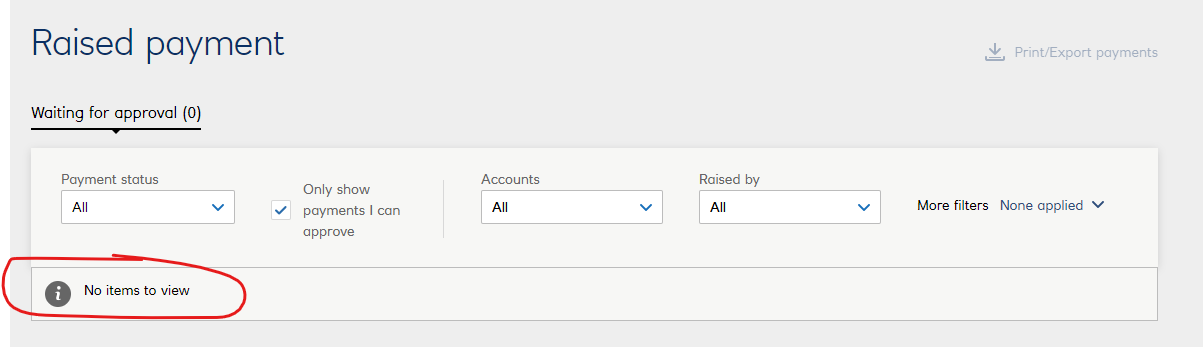
  
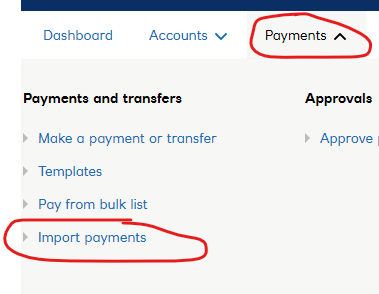
1\. Go to your imports - **Payments** &gt; **Import Payments**

[![image-1653569194161.png](https://manual.maticmedia.co.uk/uploads/images/gallery/2022-05/scaled-1680-/image-1653569194161.png)](https://manual.maticmedia.co.uk/uploads/images/gallery/2022-05/image-1653569194161.png)

2\. Click the file you imported from Step 17 in the above steps

[![image-1653569242018.png](https://manual.maticmedia.co.uk/uploads/images/gallery/2022-05/scaled-1680-/image-1653569242018.png)](https://manual.maticmedia.co.uk/uploads/images/gallery/2022-05/image-1653569242018.png)

  
3\. Under the incomplete row should show one incomplete payment

[![image-1653569320351.png](https://manual.maticmedia.co.uk/uploads/images/gallery/2022-05/scaled-1680-/image-1653569320351.png)](https://manual.maticmedia.co.uk/uploads/images/gallery/2022-05/image-1653569320351.png)  
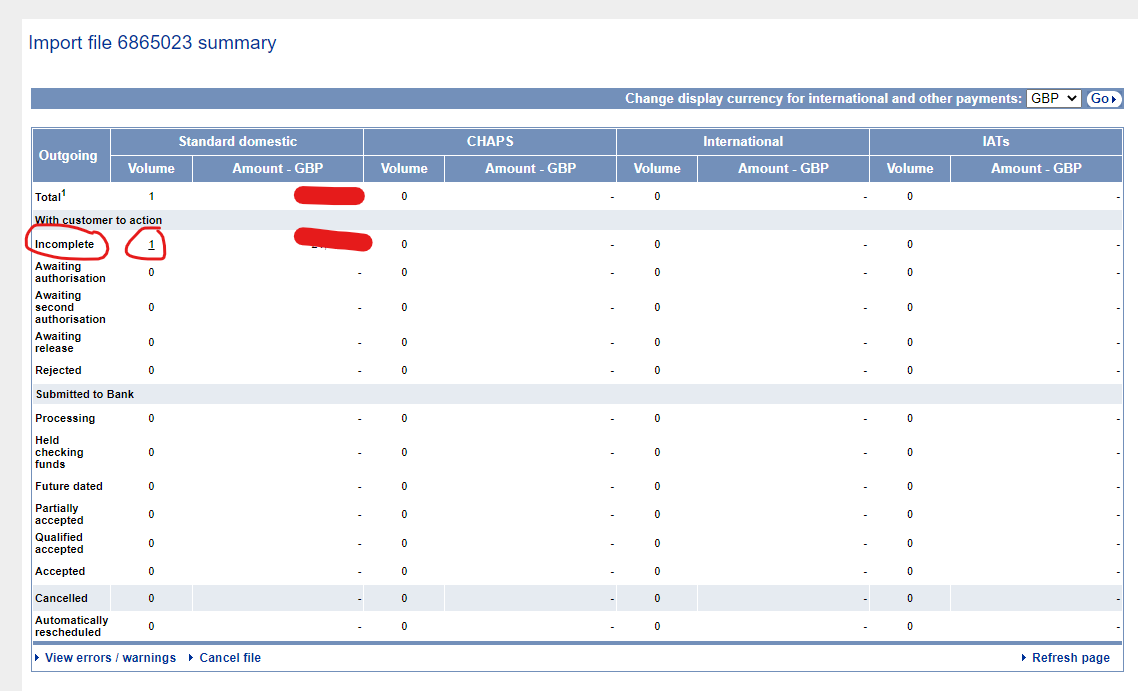
  
4\. Click the "1" in the image above  
  
5\. Select the Payment ref

[![image-1653569387700.png](https://manual.maticmedia.co.uk/uploads/images/gallery/2022-05/scaled-1680-/image-1653569387700.png)](https://manual.maticmedia.co.uk/uploads/images/gallery/2022-05/image-1653569387700.png)
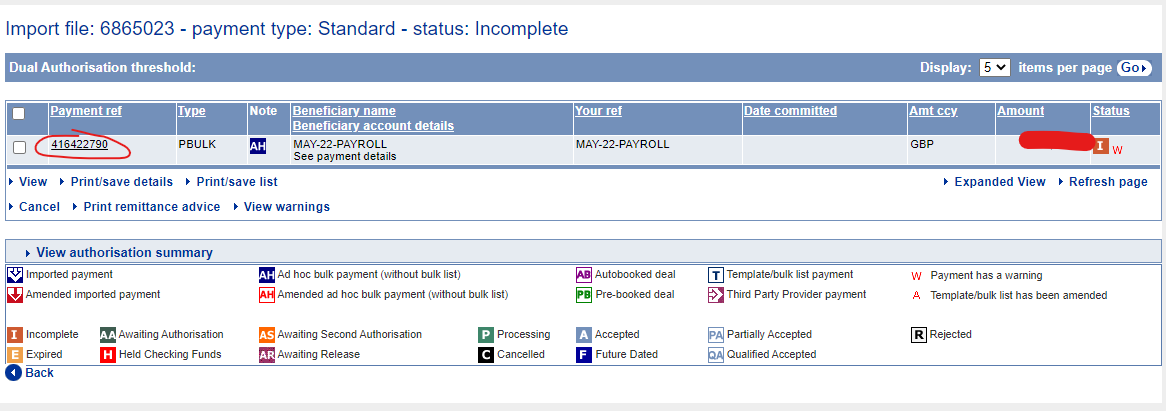
6\. You will see one or more errors

[![image-1653569453746.png](https://manual.maticmedia.co.uk/uploads/images/gallery/2022-05/scaled-1680-/image-1653569453746.png)](https://manual.maticmedia.co.uk/uploads/images/gallery/2022-05/image-1653569453746.png)  
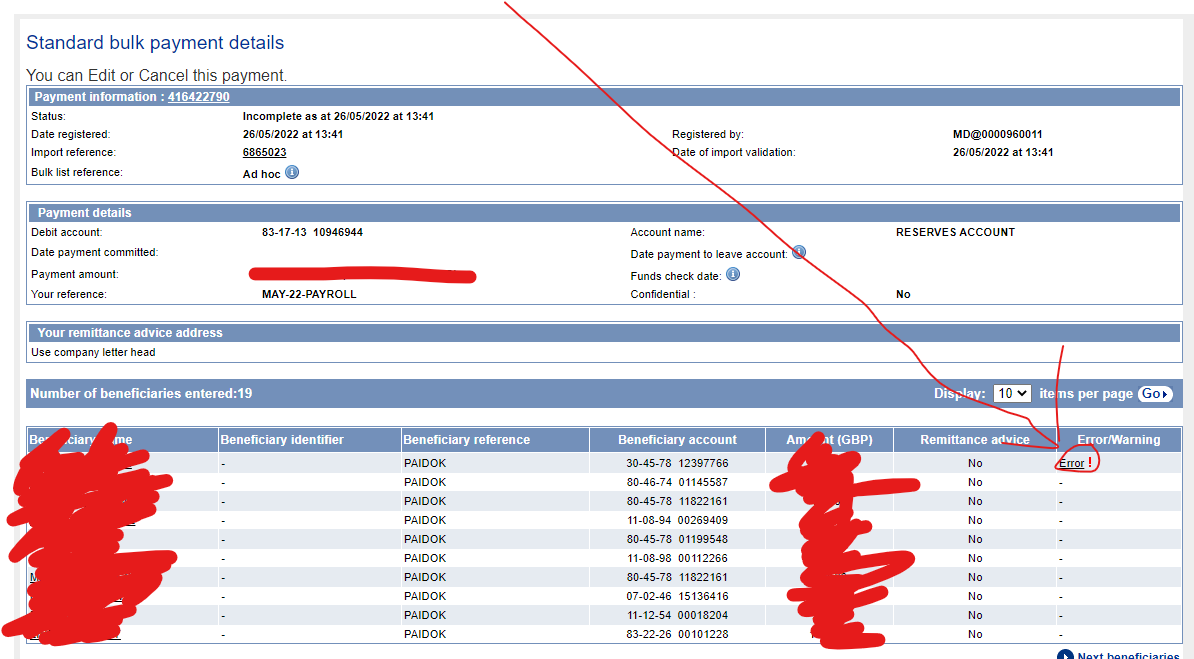
  
7\. Click on the error to see the problem

[![image-1653569500822.png](https://manual.maticmedia.co.uk/uploads/images/gallery/2022-05/scaled-1680-/image-1653569500822.png)](https://manual.maticmedia.co.uk/uploads/images/gallery/2022-05/image-1653569500822.png)

<p class="callout success">8. FIX THE ERROR IN XERO AND RESTART THE IMPORT PROCESS FROM STEP 1 **(YOU NEED TO RENAMED THE IMPORT FILE)**</p>

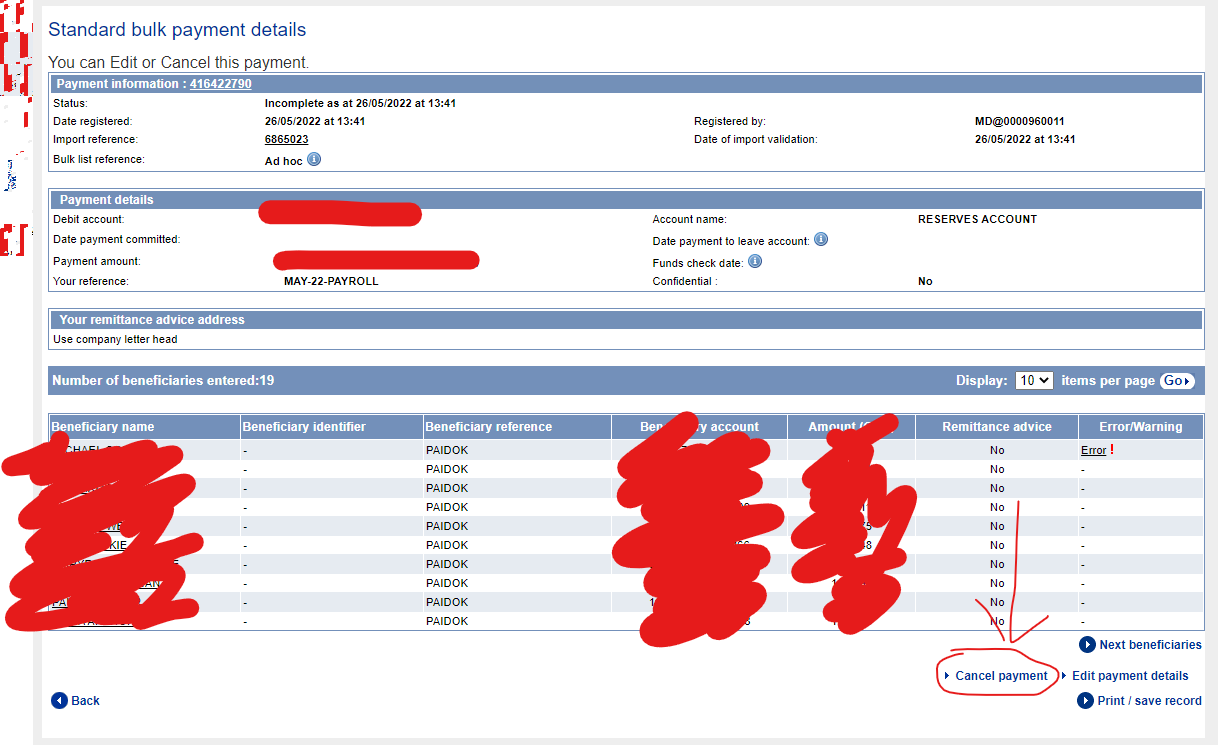
<p class="callout danger">9. [DON'T FORGET TO CANCEL THE IMPORT AS BELOW](mailto:DON@T)</p>

[![image-1653569688541.png](https://manual.maticmedia.co.uk/uploads/images/gallery/2022-05/scaled-1680-/image-1653569688541.png)](https://manual.maticmedia.co.uk/uploads/images/gallery/2022-05/image-1653569688541.png)  
Then

[![image-1653569718415.png](https://manual.maticmedia.co.uk/uploads/images/gallery/2022-05/scaled-1680-/image-1653569718415.png)](https://manual.maticmedia.co.uk/uploads/images/gallery/2022-05/image-1653569718415.png)

# Generating NEST Pension File


# Posting Pay Run & Sending Payslips

## Posting the Pay Run

After making all your payslip changes you can post the pay run by clicking **"Post Run"**

[![image-1653424718052.png](https://manual.maticmedia.co.uk/uploads/images/gallery/2022-05/scaled-1680-/image-1653424718052.png)](https://manual.maticmedia.co.uk/uploads/images/gallery/2022-05/image-1653424718052.png)

## Viewing Payslips

#### Before a pay run is posted

[![image-1653424771698.png](https://manual.maticmedia.co.uk/uploads/images/gallery/2022-05/scaled-1680-/image-1653424771698.png)](https://manual.maticmedia.co.uk/uploads/images/gallery/2022-05/image-1653424771698.png)
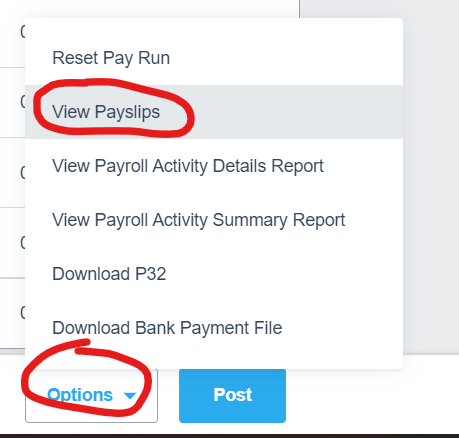
#### After a pay run is posted

[![image-1653424871600.png](https://manual.maticmedia.co.uk/uploads/images/gallery/2022-05/scaled-1680-/image-1653424871600.png)](https://manual.maticmedia.co.uk/uploads/images/gallery/2022-05/image-1653424871600.png)
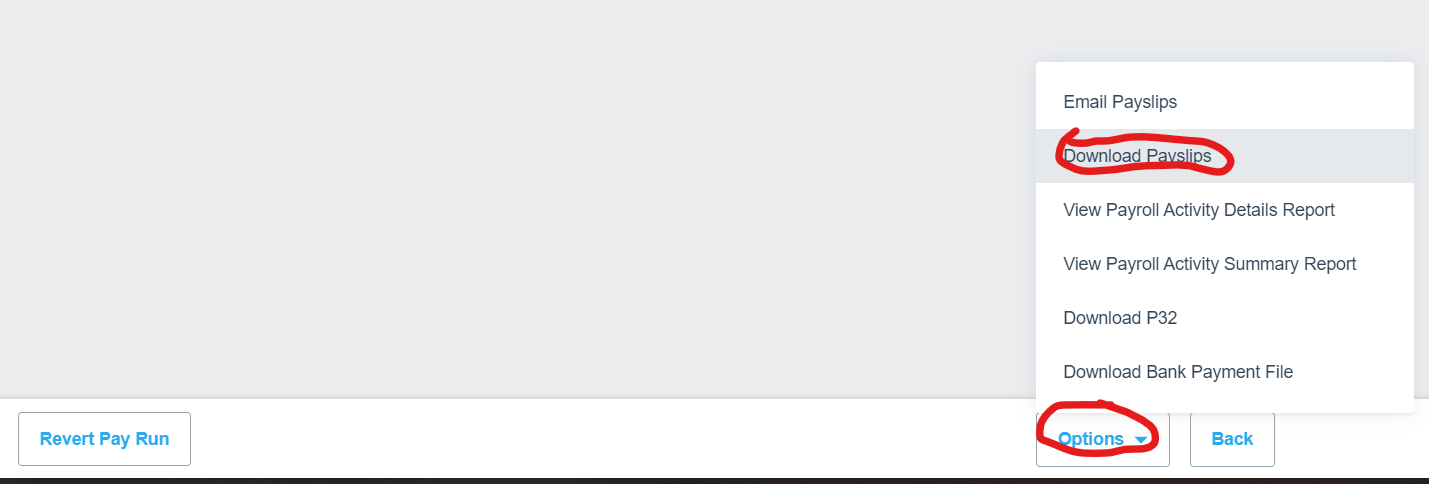
## Sending Payslips

[![image-1653424843902.png](https://manual.maticmedia.co.uk/uploads/images/gallery/2022-05/scaled-1680-/image-1653424843902.png)](https://manual.maticmedia.co.uk/uploads/images/gallery/2022-05/image-1653424843902.png)
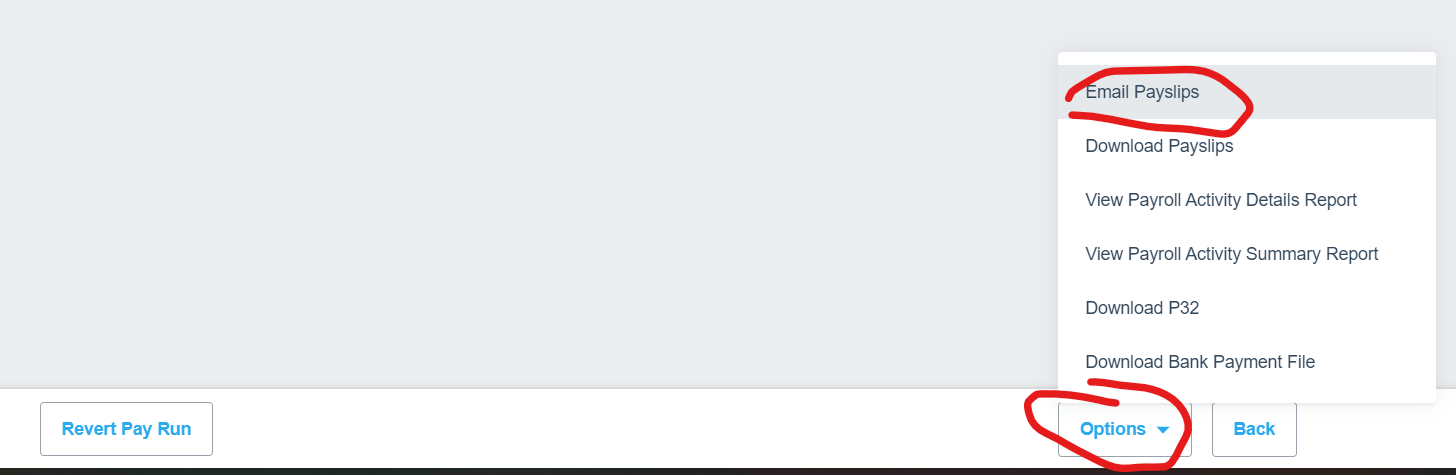
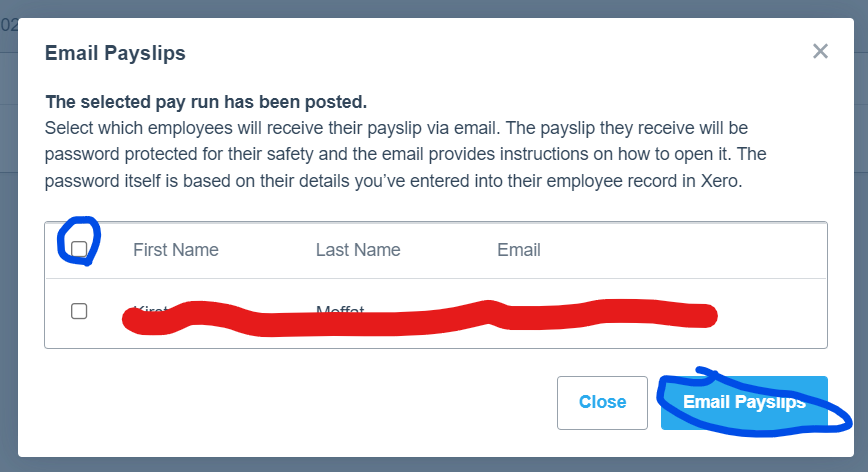
On the next screen, select who you want to send the payslips too and click **"Email Payslips"**

[![image-1653424951042.png](https://manual.maticmedia.co.uk/uploads/images/gallery/2022-05/scaled-1680-/image-1653424951042.png)](https://manual.maticmedia.co.uk/uploads/images/gallery/2022-05/image-1653424951042.png)
# Adding Bonus's / Extra Payments

On the Employee Payslip Screen...

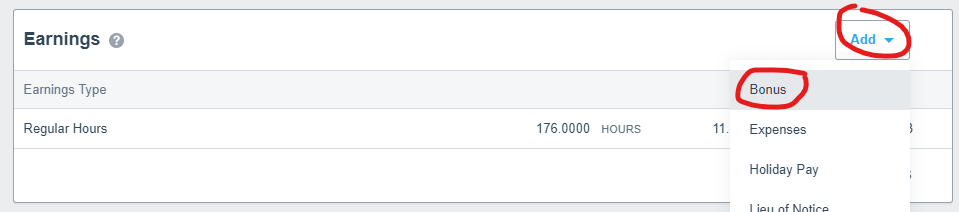
1. Click **"Add"** and **"Bonus"**  
      
    [![image-1653498457898.png](https://manual.maticmedia.co.uk/uploads/images/gallery/2022-05/scaled-1680-/image-1653498457898.png)](https://manual.maticmedia.co.uk/uploads/images/gallery/2022-05/image-1653498457898.png)
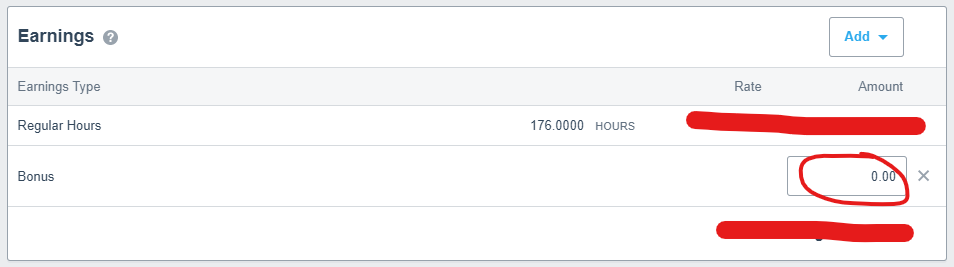
2. Enter the amount in pounds of the bonus  
      
    [![image-1653498504741.png](https://manual.maticmedia.co.uk/uploads/images/gallery/2022-05/scaled-1680-/image-1653498504741.png)](https://manual.maticmedia.co.uk/uploads/images/gallery/2022-05/image-1653498504741.png)
3. Click "Save"  
      
    [![image-1653498522929.png](https://manual.maticmedia.co.uk/uploads/images/gallery/2022-05/scaled-1680-/image-1653498522929.png)](https://manual.maticmedia.co.uk/uploads/images/gallery/2022-05/image-1653498522929.png)
# Adding Expenses


# Paying National Insurance & Tax

# Living Wage / National Minimum Wage Changes (April/May)

In May of each year the living wage increases

In April of each year the national minimum wage increases happen.

You can see the Living wage for the year here: [What is the real Living Wage | Living Wage Scotland (scottishlivingwage.org)](https://scottishlivingwage.org/what-is-the-real-living-wage/)

You can see the Minimum Wage and age brackets here: [National Minimum Wage and National Living Wage rates - GOV.UK (www.gov.uk)](https://www.gov.uk/national-minimum-wage-rates)

You have to update the base pay of the following individuals each year to the new living wage or minimum wage.

<table border="1" id="bkmrk-employee-id-wage-upd" style="border-collapse: collapse; width: 100%; height: 136.188px;"><tbody><tr style="height: 46.7969px;"><td style="width: 50.0618%; height: 46.7969px;">**Employee ID**</td><td style="width: 24.9691%; height: 46.7969px;">**Wage**</td><td style="width: 24.9691%;">**Updated in 2022**</td></tr><tr style="height: 29.7969px;"><td style="width: 50.0618%; height: 29.7969px;">94</td><td style="width: 24.9691%; height: 29.7969px;">MW</td><td style="width: 24.9691%;">Yes (April)</td></tr><tr style="height: 29.7969px;"><td style="width: 50.0618%; height: 29.7969px;">64</td><td style="width: 24.9691%; height: 29.7969px;">LW</td><td style="width: 24.9691%;">Yes (May)</td></tr><tr style="height: 29.7969px;"><td style="width: 50.0618%; height: 29.7969px;">93</td><td style="width: 24.9691%; height: 29.7969px;">MW</td><td style="width: 24.9691%;">Yes (April)</td></tr><tr><td style="width: 50.0618%;">35</td><td style="width: 24.9691%;">LW</td><td style="width: 24.9691%;">Yes (May)</td></tr><tr><td style="width: 50.0618%;">101</td><td style="width: 24.9691%;">MW</td><td style="width: 24.9691%;">Yes (May)</td></tr><tr><td style="width: 50.0618%;">102</td><td style="width: 24.9691%;">MW</td><td style="width: 24.9691%;">No (New Start)</td></tr></tbody></table>