# Internet Settings

# Virgin Media (Primary Internet)


# BT Internet (Secondary Internet)


# WiFi Mesh Network (Google WiFi)


# VPN


# Adding Users

1. Go to [https://192.168.0.1:81/](https://192.168.0.1:81/)
2. Log in use the root user details in the Vault
3. Click Accounts &gt; Users from the left hand menu  
    [![image-1655714864939.png](https://manual.maticmedia.co.uk/uploads/images/gallery/2022-06/scaled-1680-/image-1655714864939.png)](https://manual.maticmedia.co.uk/uploads/images/gallery/2022-06/image-1655714864939.png)
4. Click Add  
    [![image-1655714899401.png](https://manual.maticmedia.co.uk/uploads/images/gallery/2022-06/scaled-1680-/image-1655714899401.png)](https://manual.maticmedia.co.uk/uploads/images/gallery/2022-06/image-1655714899401.png)
5. Enter the following  
      
    <table border="1" style="border-collapse: collapse; width: 100%;"><tbody><tr><td style="width: 49.933%;">**Username**</td><td style="width: 49.933%;">the user name</td></tr><tr><td style="width: 49.933%;">**Forename**</td><td style="width: 49.933%;">the users firstname</td></tr><tr><td style="width: 49.933%;">**Surname**</td><td style="width: 49.933%;">the users surname</td></tr><tr><td style="width: 49.933%;">**Password**</td><td style="width: 49.933%;">The password to login to the VPN</td></tr><tr><td style="width: 49.933%;">**OpenVPN User**</td><td style="width: 49.933%;">Yes</td></tr><tr><td style="width: 49.933%;">**Security Certificates User**</td><td style="width: 49.933%;">Yes</td></tr></tbody></table>
    
    [![image-1655715065352.png](https://manual.maticmedia.co.uk/uploads/images/gallery/2022-06/scaled-1680-/image-1655715065352.png)](https://manual.maticmedia.co.uk/uploads/images/gallery/2022-06/image-1655715065352.png)
6. Then click "Add"  
      
    [![image-1655715118377.png](https://manual.maticmedia.co.uk/uploads/images/gallery/2022-06/scaled-1680-/image-1655715118377.png)](https://manual.maticmedia.co.uk/uploads/images/gallery/2022-06/image-1655715118377.png)

# Setting Up Client

The client allows a computer to connect to the VPN.

1. Go to the OpenVPN website and down the Connect Client available here: [OpenVPN Client Connect For Windows | OpenVPN](https://openvpn.net/client-connect-vpn-for-windows/)
2. Install the OpenVPN Client
3. [Setup a new user using the instructions here](https://manual.maticmedia.co.uk/books/internet-settings/page/adding-users "Adding Users")
4. Log in to the router at [https://192.168.0.1:81](https://192.168.0.1:81) using the new user's information. <p class="callout warning">You will have to accept the unknown certificate</p>
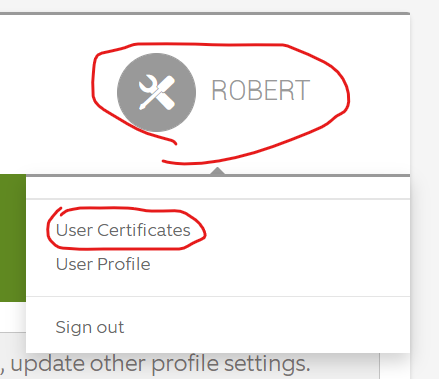
5. Click on the user name on the top right of the screen and the select "User Certificates"  
    [![image-1655713698883.png](https://manual.maticmedia.co.uk/uploads/images/gallery/2022-06/scaled-1680-/image-1655713698883.png)](https://manual.maticmedia.co.uk/uploads/images/gallery/2022-06/image-1655713698883.png)
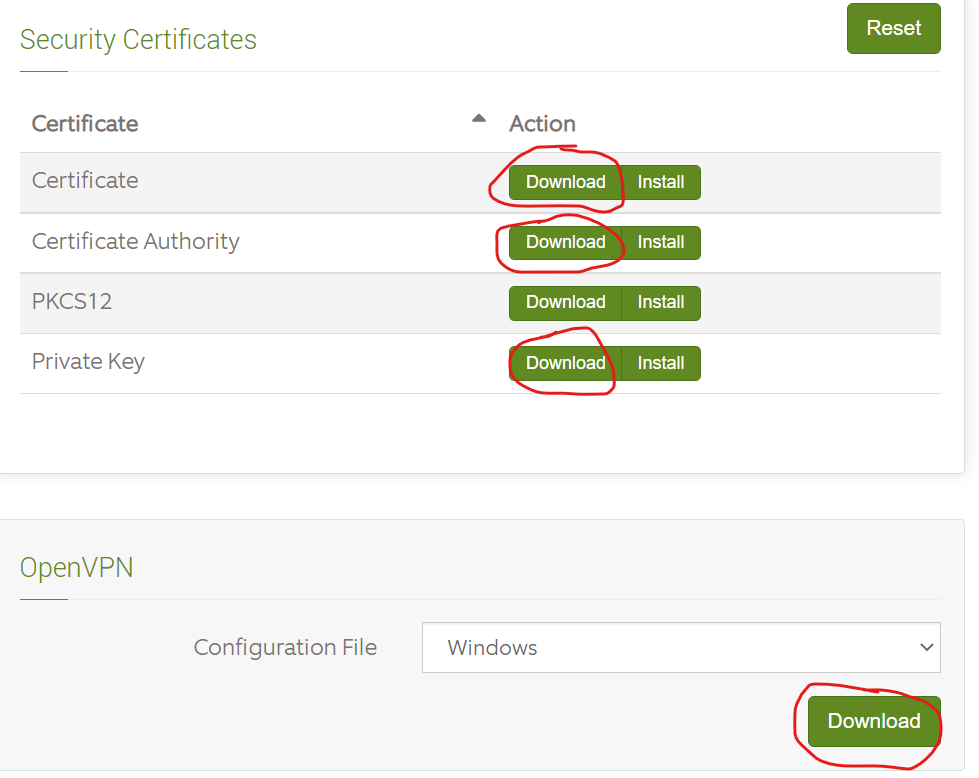
6. Download the following  
    
    1. Certificate
    2. Certificate Authority
    3. Private Key
    4. Windows Configuration File
7. As below  
    [![image-1655714061926.png](https://manual.maticmedia.co.uk/uploads/images/gallery/2022-06/scaled-1680-/image-1655714061926.png)](https://manual.maticmedia.co.uk/uploads/images/gallery/2022-06/image-1655714061926.png)
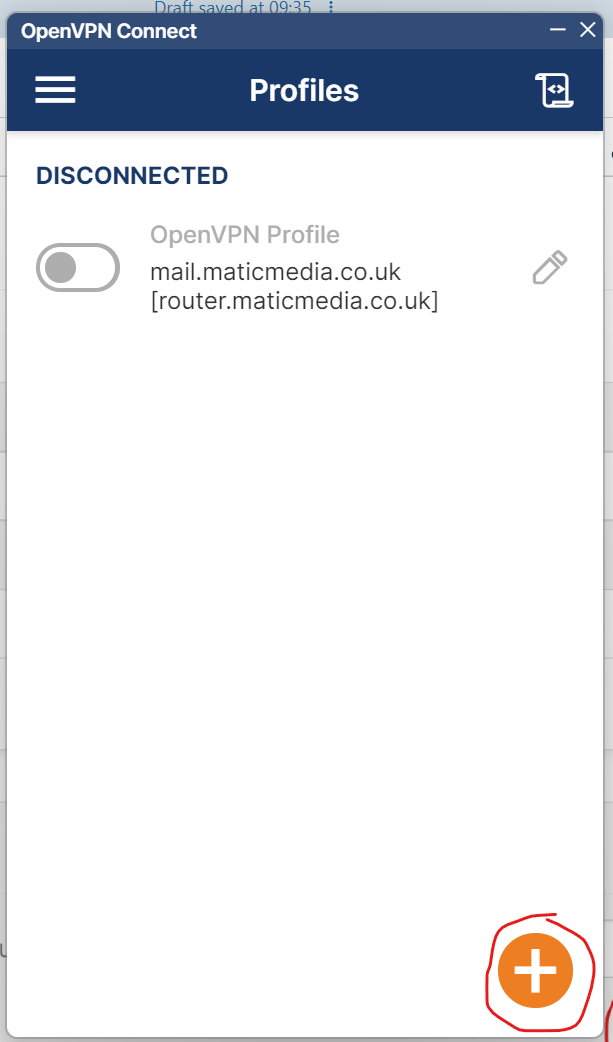
8. From the OpenVPN Connect client click the plus symbol  
    [![image-1655714183392.png](https://manual.maticmedia.co.uk/uploads/images/gallery/2022-06/scaled-1680-/image-1655714183392.png)](https://manual.maticmedia.co.uk/uploads/images/gallery/2022-06/image-1655714183392.png)
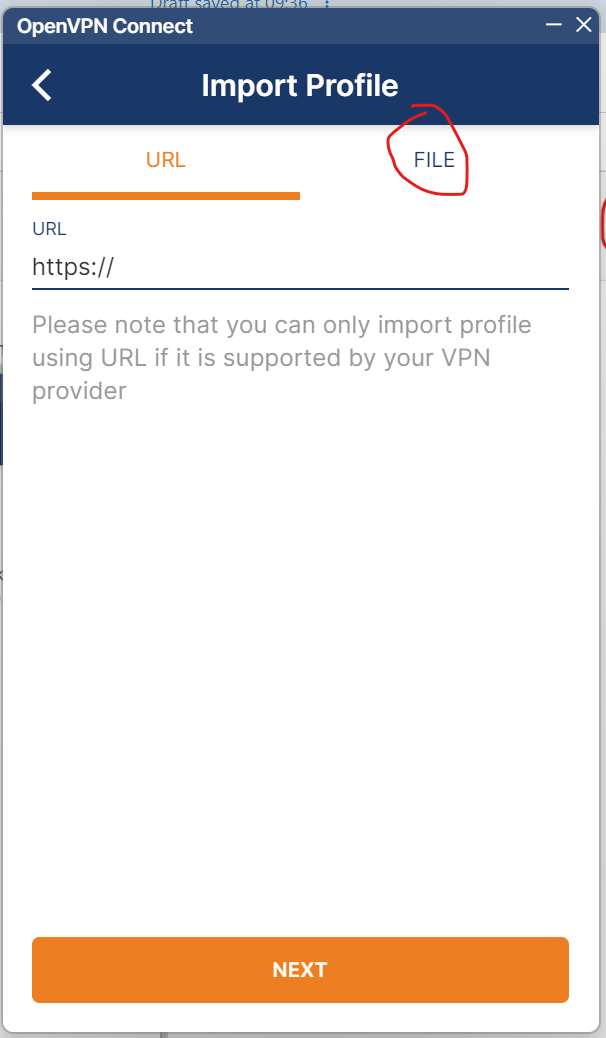
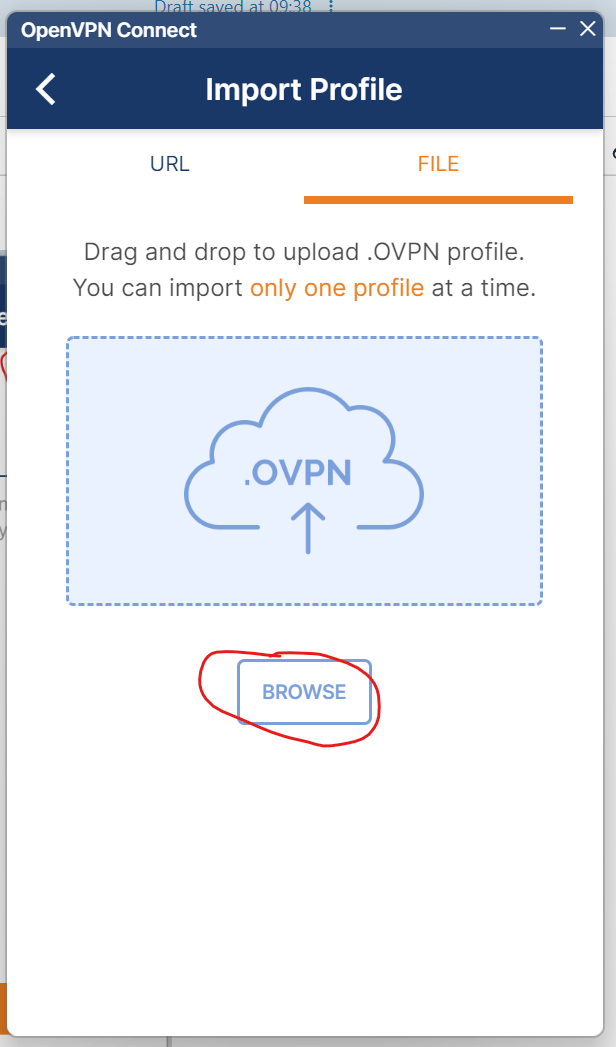
9. Click File  
      
    [![image-1655714224240.png](https://manual.maticmedia.co.uk/uploads/images/gallery/2022-06/scaled-1680-/image-1655714224240.png)](https://manual.maticmedia.co.uk/uploads/images/gallery/2022-06/image-1655714224240.png)
10. Select the File from the Downloads folder (the downloads from step 7 must all be in the same folder)  
      
    [![image-1655714412408.png](https://manual.maticmedia.co.uk/uploads/images/gallery/2022-06/scaled-1680-/image-1655714412408.png)](https://manual.maticmedia.co.uk/uploads/images/gallery/2022-06/image-1655714412408.png)
11. Enter the username and password of the new user from step 3 <p class="callout warning">The VPN will not connect within the building, you can test the settings by adding a server override to 192.168.0.1.  
    YOU MUST TURN OFF SERVER OVERRIDE TO BLANK WHEN OUTSIDE THE BUILDING NETWORK.</p>

# Resetting User Password


# Disabling a User


# OpenVPN