# Creating a Stock Accrual
You must have permissions to Manual Journals to make Stock Accruals
Stock Accruals are generated from the Stock Management Spreadsheet on the shared business one drive. Link here:
[https://1drv.ms/x/s!AgZhmG8o-Mafge0h9LG0mwqB-cdJBw?e=XN8Msx](https://1drv.ms/x/s!AgZhmG8o-Mafge0h9LG0mwqB-cdJBw?e=XN8Msx)
#### Stockheld Stocks
We stockhold the following stocks
| **Stock** | **Supplier** |
| Banner | Soyang/Innotech/Europoint/Vink |
| Mesh | Soyang/Innotech |
| 3mm PVC (8x4) | Antalis/Europoint/Perspex |
| 5mm PVC (8x4) | Antalis/Europoint/Perspex |
| ACM 0.10 Skin (8x4) | Antalis/Perspex/Vink |
| ACM 0.12 Skin (10x5) | Antalis/Perspex/Vink |
| Quickfire 800mm Roll Ups | Very/Innotech/Plex/Easy Stands |
| 3.5mm Fluted Board (Correx) | Antalis/Europoint |
| Vinyl | Antalis/Europoint/Perspex |
#### Stock Count Sheet
The excel document contains the following spreadsheets...
[](https://manual.maticmedia.co.uk/uploads/images/gallery/2022-05/image-1652281249008.png)
One for each stock type.
##### Spreadsheet Format
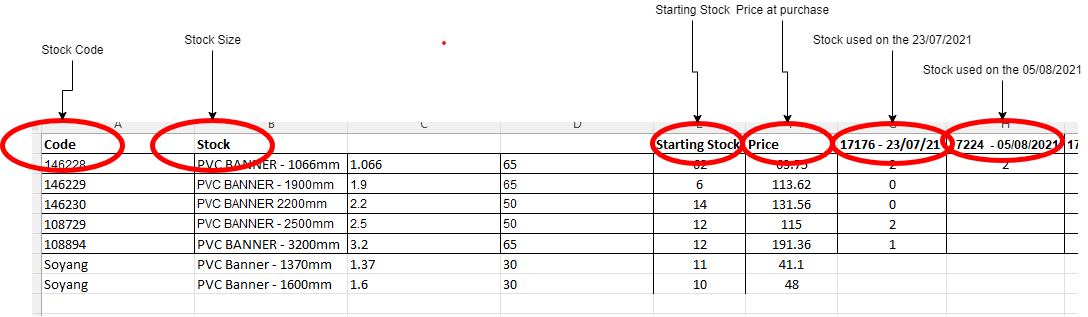
On each spreadsheet you will find...
- List of stock sizes
- Supplier codes
- Price at purchase
- Starting Stock Count
- For each withdrawal date from stock the amount of stock taken
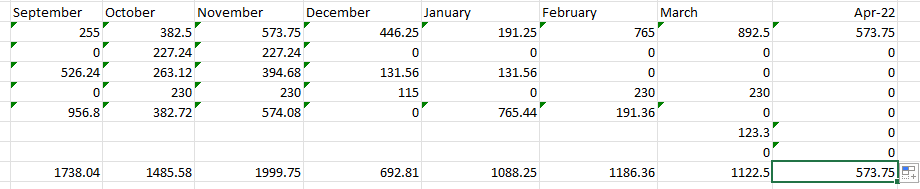
- A breakdown of the total amount of stock used per month
#### 1. Calculate the Months Usage
1. Update the Stock Management Totals Section
[](https://manual.maticmedia.co.uk/uploads/images/gallery/2022-05/image-1652282227865.png)
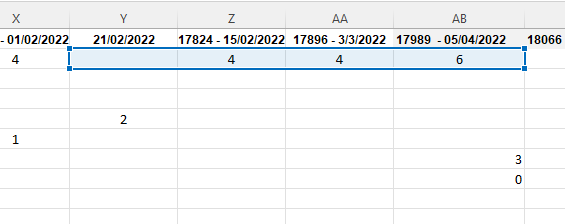
2. Find out the last period that the stock ran too
[](https://manual.maticmedia.co.uk/uploads/images/gallery/2022-05/image-1652282269912.png)
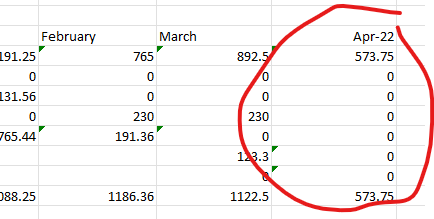
3. Add an extra month to the Stock Management Totals Section
[](https://manual.maticmedia.co.uk/uploads/images/gallery/2022-05/image-1652282306621.png)
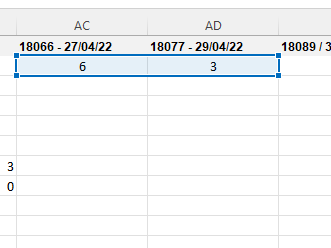
4. Update the copied formula to select this months dates
[](https://manual.maticmedia.co.uk/uploads/images/gallery/2022-05/image-1652282344629.png)
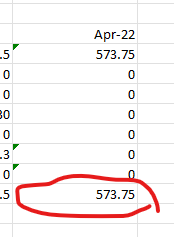
5. Use this total as your accrual value
[](https://manual.maticmedia.co.uk/uploads/images/gallery/2022-05/image-1652282373385.png)
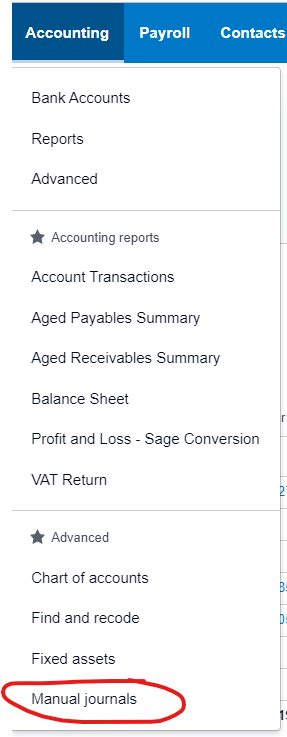
#### 2. From the Accounting Menu > Manual Journals
[](https://manual.maticmedia.co.uk/uploads/images/gallery/2022-05/image-1652276936895.png)
#### 3. Select New Journal
[](https://manual.maticmedia.co.uk/uploads/images/gallery/2022-05/image-1652277054959.png)
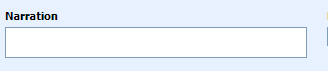
#### 3. The Narration is so you can quickly see the content of the journal, think of it like the invoice number
[](https://manual.maticmedia.co.uk/uploads/images/gallery/2022-05/image-1652277108642.png)
##### 3.2 For Stock Accruals the Journal Narration Should be STOCK OUT/IN - MONTH
e.g. STOCK OUT - April
[](https://manual.maticmedia.co.uk/uploads/images/gallery/2022-05/image-1652283525005.png)
#### 4. Enter the lines of the Manual Journal
If you are accruing for Sales Invoices, you should also accrue for the Stock and Supplier Costs as Bill Accruals
##### For Stock In
For Stock In there should be two lines for each stock, one Credit to Nominal Code 5200 - Opening Stock and one Debit to Nominal Code 1001. **The credit amount should be the total amount of stock that is to be held.**
##### For Stock Out
For Stock In there should be two lines for each stock, one Debit to Nominal Code 5200 - Opening Stock and one Credit to Nominal Code 1001. **The credit amount should be the total amount of stock used in the month.**
[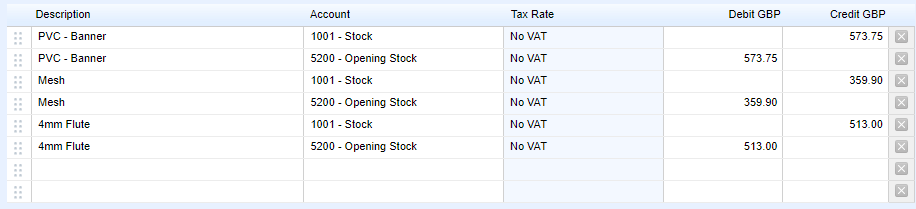](https://manual.maticmedia.co.uk/uploads/images/gallery/2022-05/image-1652283533586.png)
#### 5. Select the Date
You should select the date you want the accrual to appear in. e.g. If you are accruing an April Stock it would be 30/04/2022
[](https://manual.maticmedia.co.uk/uploads/images/gallery/2022-05/image-1652277632546.png)
#### 6. Do not Select a Reversing Date
For Stock accruals you do not select a reversing date.