# Journals (Accurals)
# Creating a Sales Accrual
You must have permissions to Manual Journals to make Sales Accruals
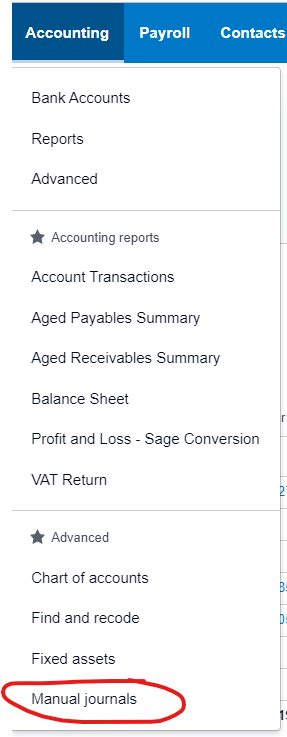
#### 1. From the Accounting Menu > Manual Journals
[](https://manual.maticmedia.co.uk/uploads/images/gallery/2022-05/image-1652276936895.png)
#### 2. Select New Journal
[](https://manual.maticmedia.co.uk/uploads/images/gallery/2022-05/image-1652277054959.png)
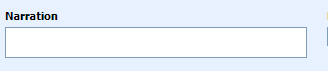
#### 3. The Narration is so you can quickly see the content of the journal, think of it like the invoice number
[](https://manual.maticmedia.co.uk/uploads/images/gallery/2022-05/image-1652277108642.png)
##### 3.1 For Sales Invoices the Narration should be the Invoice Number and Customer you are accruing for
e.g. QUO:927668 J Thomson Colour Printers Limited
[](https://manual.maticmedia.co.uk/uploads/images/gallery/2022-05/image-1652277211144.png)
#### 4. Enter the lines of the Manual Journal
If you are accruing for Sales Invoices, you should also accrue for the Stock and Supplier Costs as Bill Accruals
For Sales Invoices there should be two lines, one Credit to Nominal Code 4102 - Unconfirmed Sales and one Debit to Nominal Code 2109. **The credit amount should be the total amount of the invoice.**
[](https://manual.maticmedia.co.uk/uploads/images/gallery/2022-05/image-1652277478512.png)
#### 5. Select the Date
You should select the date you want the accrual to appear in. e.g. If you are accruing an May Invoice in April it would be 30/04/2022
[](https://manual.maticmedia.co.uk/uploads/images/gallery/2022-05/image-1652277632546.png)
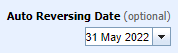
#### 6. Select the Automatic Reversing Date
For sales invoices you should always set the Auto Reversing Date as the following month, this allows you to track when a Sales Invoice has been properly invoiced and reversed.
[](https://manual.maticmedia.co.uk/uploads/images/gallery/2022-05/image-1652277725360.png)
# Creating a Stock Accrual
You must have permissions to Manual Journals to make Stock Accruals
Stock Accruals are generated from the Stock Management Spreadsheet on the shared business one drive. Link here:
[https://1drv.ms/x/s!AgZhmG8o-Mafge0h9LG0mwqB-cdJBw?e=XN8Msx](https://1drv.ms/x/s!AgZhmG8o-Mafge0h9LG0mwqB-cdJBw?e=XN8Msx)
#### Stockheld Stocks
We stockhold the following stocks
| **Stock** | **Supplier** |
| Banner | Soyang/Innotech/Europoint/Vink |
| Mesh | Soyang/Innotech |
| 3mm PVC (8x4) | Antalis/Europoint/Perspex |
| 5mm PVC (8x4) | Antalis/Europoint/Perspex |
| ACM 0.10 Skin (8x4) | Antalis/Perspex/Vink |
| ACM 0.12 Skin (10x5) | Antalis/Perspex/Vink |
| Quickfire 800mm Roll Ups | Very/Innotech/Plex/Easy Stands |
| 3.5mm Fluted Board (Correx) | Antalis/Europoint |
| Vinyl | Antalis/Europoint/Perspex |
#### Stock Count Sheet
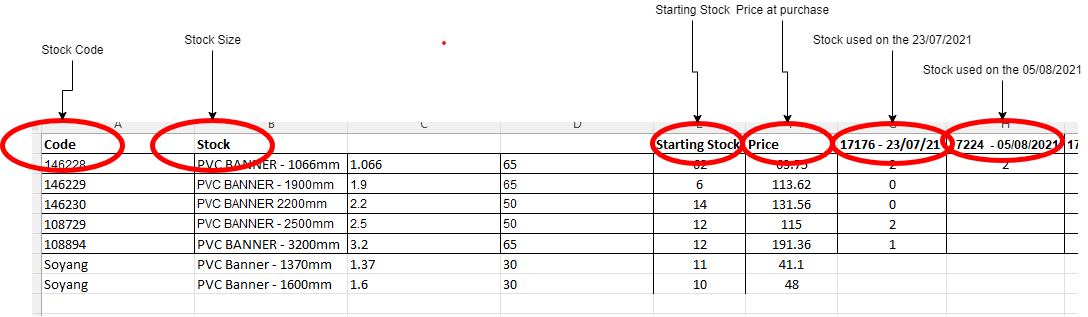
The excel document contains the following spreadsheets...
[](https://manual.maticmedia.co.uk/uploads/images/gallery/2022-05/image-1652281249008.png)
One for each stock type.
##### Spreadsheet Format
On each spreadsheet you will find...
- List of stock sizes
- Supplier codes
- Price at purchase
- Starting Stock Count
- For each withdrawal date from stock the amount of stock taken
- A breakdown of the total amount of stock used per month
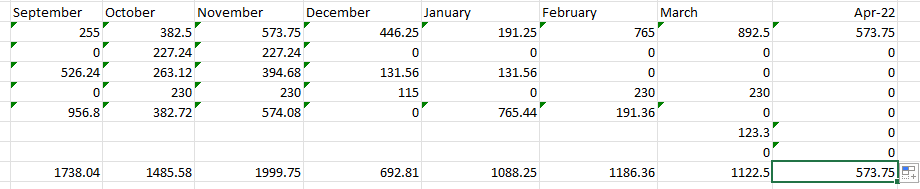
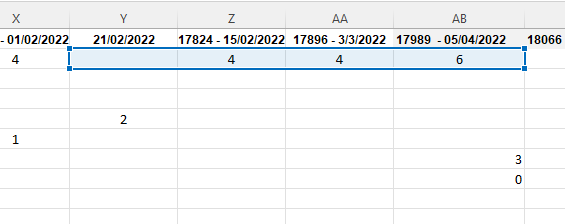
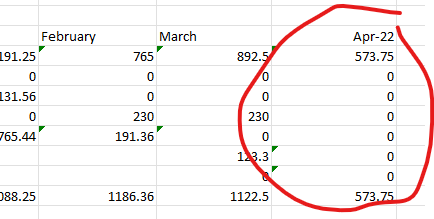
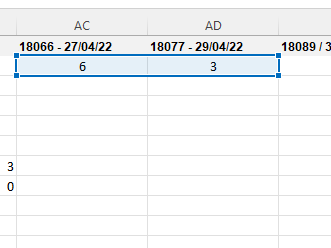
#### 1. Calculate the Months Usage
1. Update the Stock Management Totals Section
[](https://manual.maticmedia.co.uk/uploads/images/gallery/2022-05/image-1652282227865.png)
2. Find out the last period that the stock ran too
[](https://manual.maticmedia.co.uk/uploads/images/gallery/2022-05/image-1652282269912.png)
3. Add an extra month to the Stock Management Totals Section
[](https://manual.maticmedia.co.uk/uploads/images/gallery/2022-05/image-1652282306621.png)
4. Update the copied formula to select this months dates
[](https://manual.maticmedia.co.uk/uploads/images/gallery/2022-05/image-1652282344629.png)
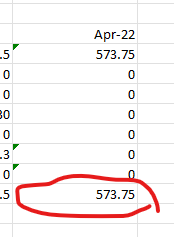
5. Use this total as your accrual value
[](https://manual.maticmedia.co.uk/uploads/images/gallery/2022-05/image-1652282373385.png)
#### 2. From the Accounting Menu > Manual Journals
[](https://manual.maticmedia.co.uk/uploads/images/gallery/2022-05/image-1652276936895.png)
#### 3. Select New Journal
[](https://manual.maticmedia.co.uk/uploads/images/gallery/2022-05/image-1652277054959.png)
#### 3. The Narration is so you can quickly see the content of the journal, think of it like the invoice number
[](https://manual.maticmedia.co.uk/uploads/images/gallery/2022-05/image-1652277108642.png)
##### 3.2 For Stock Accruals the Journal Narration Should be STOCK OUT/IN - MONTH
e.g. STOCK OUT - April
[](https://manual.maticmedia.co.uk/uploads/images/gallery/2022-05/image-1652283525005.png)
#### 4. Enter the lines of the Manual Journal
If you are accruing for Sales Invoices, you should also accrue for the Stock and Supplier Costs as Bill Accruals
##### For Stock In
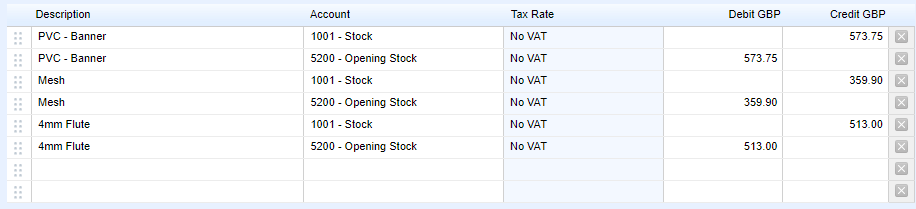
For Stock In there should be two lines for each stock, one Credit to Nominal Code 5200 - Opening Stock and one Debit to Nominal Code 1001. **The credit amount should be the total amount of stock that is to be held.**
##### For Stock Out
For Stock In there should be two lines for each stock, one Debit to Nominal Code 5200 - Opening Stock and one Credit to Nominal Code 1001. **The credit amount should be the total amount of stock used in the month.**
[](https://manual.maticmedia.co.uk/uploads/images/gallery/2022-05/image-1652283533586.png)
#### 5. Select the Date
You should select the date you want the accrual to appear in. e.g. If you are accruing an April Stock it would be 30/04/2022
[](https://manual.maticmedia.co.uk/uploads/images/gallery/2022-05/image-1652277632546.png)
#### 6. Do not Select a Reversing Date
For Stock accruals you do not select a reversing date.
# Creating a Bill/Supplier/Prepayment Accrual
You must have permissions to Manual Journals to make Sales Accruals
Sometimes you want to split the cost of something over several months or a year. You can do this by creating a recurring journal.
Examples of accruals...
| **Type** | **Period** | **Total Amount** | **Amount Per Month** |
| ISO Audit | 12 months | £1200 | £100 |
| New Arizona Printhead | 6 Months | £2400 | £400 |
#### 1. From the Accounting Menu > Manual Journals
[](https://manual.maticmedia.co.uk/uploads/images/gallery/2022-05/image-1652276936895.png)
#### 2. Select New Journal or Repeating Journal
[](https://manual.maticmedia.co.uk/uploads/images/gallery/2022-05/image-1652283927262.png)
#### 3. The Narration is so you can quickly see the content of the journal, think of it like the invoice number
[](https://manual.maticmedia.co.uk/uploads/images/gallery/2022-05/image-1652277108642.png)
##### 3.1 For Bills the Narration should be the Purchase Order Number and Supplier you are accruing for
e.g. MM12345 - Canon - Arizona Print Head
##### 3.2 For Prepayments the Narration should be the Purchase Order Number, Supplier and The Period
e.g. MM12345 - Canon - Arizona Print Head - 6 Month Split
#### 4. Enter the lines of the Manual Journal
For Bills there should be two lines, one Credit to the Nominal Code of the Bill e.g. Fuel and one . **The credit amount should be the total amount of the bill.**
[](https://manual.maticmedia.co.uk/uploads/images/gallery/2022-05/image-1652277478512.png)
#### 5. Select the Date
You should select the date you want the accrual to appear in. e.g. If you are accruing an May Invoice in April it would be 30/04/2022
[](https://manual.maticmedia.co.uk/uploads/images/gallery/2022-05/image-1652277632546.png)
#### 6. \[OPTIONAL\] Setting the Repeat
[](https://manual.maticmedia.co.uk/uploads/images/gallery/2022-05/image-1652284381100.png)
I always try and set this to the 27th so it isn't affected by February.
#### 6. \[OPTIONAL\] Select the Automatic Reversing Date
For bills you should always set the Auto Reversing Date as the following month, this allows you to track when a Sales Invoice has been properly invoiced and reversed.
[](https://manual.maticmedia.co.uk/uploads/images/gallery/2022-05/image-1652277725360.png)