# Customer Management
# Company Management
# Creating a New Company
1\. Open Matic Track
2\. Make sure the customer has not already registered with us. If they havn't, then go to number 3.
[](https://manual.maticmedia.co.uk/uploads/images/gallery/2022-10/image-1665587585730.png)
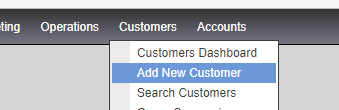
3\. Click on Customer and Select 'Add New Customer'
[](https://manual.maticmedia.co.uk/uploads/images/gallery/2022-10/image-1665587418045.png)
4\. This will open up an address form to be completed. Please make sure the details are recorded correctly. Especially the customers name.
5\. Once completed - click Save
6\. This will take you to the Customer Page
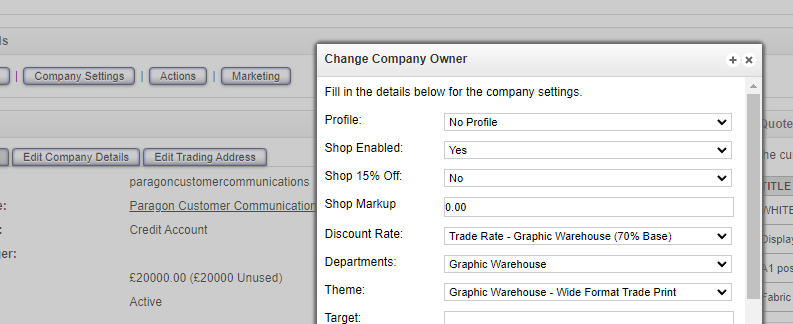
7\. Make sure the customer is on the correct rate. e.g. Trade Customers are on a different rate from Blue Chip companies and councils etc.
[](https://manual.maticmedia.co.uk/uploads/images/gallery/2022-10/image-1665588017431.png)
8\. Add in customer name, email address and telephone number to the Company Contacts section
[](https://manual.maticmedia.co.uk/uploads/images/gallery/2022-10/image-1665588083223.png)
9\. The customer is now registered. You can double check by selecting - Sales - New Quote and adding in the company name.
If the details appear then you have set it up correctly.
# Registering a Company
# Setting a Company's Credit Limit
# Credit Limit vs Shop Balance
# Merging / Absorbing 2 Companies into 1
# Contact Management
# Creating a New Contact
# Sending a Welcome Email
# Resetting a Contact's Password
# Disabling / Enabling a Contacts Shop Access
# CUSTOMER SERVICE DAILY REPORTS
[**Sign in to your account**](https://maticmedia-my.sharepoint.com/:x:/g/personal/adrian_maticmedia_onmicrosoft_com/EYsDhRk-VG1Kg2y-l7UiC38BhcgG6UxZFWcZKBSfUtiqdA?e=0Xezqo)